Documentation Index
Fetch the complete documentation index at: https://omer-914cc1c6.mintlify.app/llms.txt
Use this file to discover all available pages before exploring further.
使用侧边栏的文件浏览器浏览文档。点击任意文件即可在编辑器中打开。
按 Command + P(Windows 上为 Ctrl + P)可按名称搜索文件。
新建文件
在文件资源管理器侧边栏中选择“新建文件”图标。

输入文件名
文件名必须以 .mdx 结尾。例如:api-reference.mdx 或 getting-started.mdx。
创建并打开
按 Enter 创建文件。它会自动在编辑器中打开,随时可添加内容。
通过编辑 docs.json 文件,将新页面添加到站点导航中。
Open docs.json
使用文件资源管理器在项目根目录中找到并打开 docs.json 文件。
Locate the navigation section
在 docs.json 文件中找到你希望添加新页面的位置。
Add your page
在相应分组的 pages 数组中插入页面文件名(不含 .mdx 扩展名)。
Adding a themes page to the Profile group
{
"navigation": {
"groups": [
{
"group": "开始使用",
"pages": [
"index",
"quickstart",
"installation"
]
},
{
"group": "个人资料",
"pages": [
"settings",
"account-types",
"dashboard",
"themes"
]
}
]
}
}
在编辑器中使用可视化模式或 Markdown 模式修改页面。
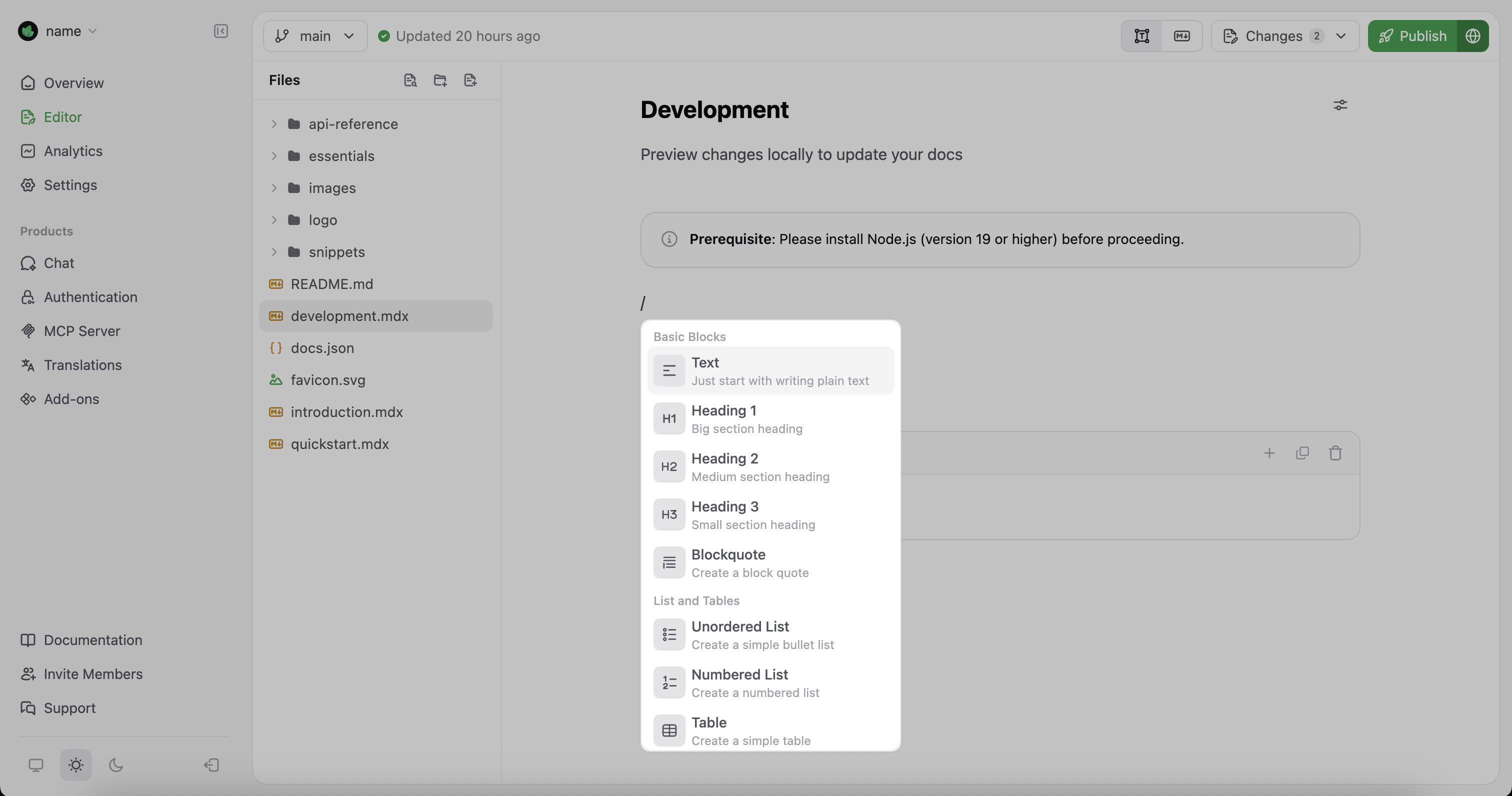
在可视化模式下,按 / 打开组件菜单。添加内容块、提示框、代码块等组件,定制你的文档。
在 Markdown 模式下,你可以直接编辑页面的 MDX。在以下情况下会很有帮助:
- 设置特定的组件属性
- 处理复杂的嵌套组件
- 从其他来源复制并粘贴
MDX 内容