

docs.json file lets you turn a collection of Markdown files into a navigable, customized documentation site. This required configuration file controls styling, navigation, integrations, and more. Think of it as the blueprint for your documentation.
Settings in docs.json apply globally to all pages.
Setting up your docs.json
To get started, you only need to specify theme, name, colors.primary, and navigation. Other fields are optional and you can add them as your documentation needs grow.
For the best editing experience, include the schema reference at the top of your docs.json file. This enables autocomplete, validation, and helpful tooltips in most code editors:
{
  "$schema": "https://mintlify.com/docs.json",
  "theme": "mint",
  "name": "Your Docs",
  "colors": {
    "primary": "#ff0000"
  },
  "navigation": {
    // Your navigation structure
  }
  // The rest of your configuration
}
Reference
This section contains the full reference for thedocs.json file.
Customization
required
The layout theme of your site.One of the following:
mint, maple, palm, willow, linden, almond, aspen.See Themes for more information.string
required
The name of your project, organization, or product.
object
required
The colors used in your documentation. Colors are applied differently across themes. If you only provide a primary color, it will be used for all color elements.
Show Colors
Show Colors
string matching ^#([a-fA-F0-9]{6}|[a-fA-F0-9]{3})$
required
The primary color for your documentation. Generally used for emphasis in light mode, with some variation by theme.Must be a hex code beginning with
#.string matching ^#([a-fA-F0-9]{6}|[a-fA-F0-9]{3})$
The color used for emphasis in dark mode.Must be a hex code beginning with
#.string matching ^#([a-fA-F0-9]{6}|[a-fA-F0-9]{3})$
The color used for buttons and hover states across both light and dark modes, with some variation by theme.Must be a hex code beginning with
#.string
Description of your site for SEO and AI indexing.
string or object
Your logo for both light and dark mode.
Show Logo
Show Logo
string
required
Path pointing to your logo file for light mode. Include the file extension. Example:
/logo.pngstring
required
Path pointing to your logo file for dark mode. Include the file extension. Example:
/logo-dark.pngstring (uri)
The URL to redirect to when clicking the logo. If not provided, the logo will link to your homepage. Example:
https://mintlify.comstring or object
Path to your favicon file, including the file extension. Automatically resized to appropriate favicon sizes.
Can be a single file or separate files for light and dark mode. Example:
/favicon.pngobject
object
Visual styling configurations.
Show Styling
Show Styling
"section" | "breadcrumbs"
The style of the page eyebrow. Choose
section to show the section name or breadcrumbs to show the full navigation path. Defaults to section."system" | "dark"
The theme of the code blocks. Choose
system to match the site theme or dark for always dark code blocks. Defaults to system.object
Icon library settings.
Show Icons
Show Icons
"fontawesome" | "lucide"
required
Icon library to use throughout your documentation. Defaults to
fontawesome.You can specify a URL to an externally hosted icon, path to an icon file in your project, or JSX-compatible SVG code for any individual icon, regardless of the library setting.
object
Font configuration for your documentation. The default font is Inter.
Show Fonts
Show Fonts
string
required
Font family, such as “Open Sans.”
number
Font weight, such as 400 or 700. Variable fonts support precise weights such as 550.
string (uri)
URL to your font source, such as https://mintlify-assets.b-cdn.net/fonts/Hubot-Sans.woff2. Google Fonts are loaded automatically when you specify a Google Font
family name, so no source URL is needed."woff" | "woff2"
Font file format.
object
Override font settings specifically for headings.
Show Heading
Show Heading
string
required
Font family, such as “Open Sans”, “Playfair Display.”
number
Font weight, such as 400, 700. Variable fonts support precise weights such as 550.
string (uri)
URL to your font source, such as https://mintlify-assets.b-cdn.net/fonts/Hubot-Sans.woff2. Google Fonts are loaded automatically when you specify a Google Font
family name, so no source URL is needed."woff" | "woff2"
Font file format.
object
Override font settings specifically for body text.
Show Body
Show Body
string
required
Font family, such as “Open Sans”, “Playfair Display.”
number
Font weight, such as 400, 700. Variable fonts support precise weights such as 550.
string (uri)
URL to your font source, such as https://mintlify-assets.b-cdn.net/fonts/Hubot-Sans.woff2. Google Fonts are loaded automatically when you specify a Google Font
family name, so no source URL is needed."woff" | "woff2"
Font file format.
object
object
Background color and decoration settings.
Show Background
Show Background
string or object
Background image for your site. Can be a single file or separate files for light and dark mode.
"gradient" | "grid" | "windows"
Background decoration for your theme.
object
Structure
object
Navigation bar items to external links.
Show Navbar
Show Navbar
array of object
Links to display in the navbar
Show Links
Show Links
string
required
Text for the link.
string (uri)
required
Link destination. Must be a valid external URL.
string
The icon to display.Options:
- Font Awesome icon name
- Lucide icon name
- JSX-compatible SVG code wrapped in curly braces
- URL to an externally hosted icon
- Path to an icon file in your project
- Convert your SVG using the SVGR converter.
- Paste your SVG code into the SVG input field.
- Copy the complete
<svg>...</svg>element from the JSX output field. - Wrap the JSX-compatible SVG code in curly braces:
icon={<svg ...> ... </svg>}. - Adjust
heightandwidthas needed.
string
The Font Awesome icon style. Only used with Font Awesome icons.Options:
regular, solid, light, thin, sharp-solid, duotone, brands.object
Primary button in the navbar.
Show Primary
Show Primary
"button" | "github"
required
Button style. Choose
button for a standard button with a label or github for a link to a GitHub repository with icon.string
required
Button text. Only applies when
type is button.string (uri)
required
Button destination. Must be an external URL. If
type is github, must be a GitHub repository URL.object
required
The navigation structure of your content.
Show Navigation
Show Navigation
object
Global navigation elements that appear across all pages and sections.
Show Global
Show Global
array of object
Language switcher configuration for localized sites.
Show Languages
Show Languages
"en" | "cn" | "zh" | "zh-Hans" | "zh-Hant" | "es" | "fr" | "ja" | "jp" | "pt" | "pt-BR" | "de" | "ko" | "it" | "ru" | "id" | "ar" | "tr"
required
Language code in ISO 639-1 format
boolean
Whether this is the default language.
boolean
Whether to hide this language option by default.
string (uri)
required
A valid path or external link to this language version of your documentation.
array of object
array of object
Top-level navigation tabs for organizing major sections.
Show Tabs
Show Tabs
string
required
Display name of the tab.Minimum length: 1
string
The icon to display.Options:
- Font Awesome icon name
- Lucide icon name
- JSX-compatible SVG code wrapped in curly braces
- URL to an externally hosted icon
- Path to an icon file in your project
- Convert your SVG using the SVGR converter.
- Paste your SVG code into the SVG input field.
- Copy the complete
<svg>...</svg>element from the JSX output field. - Wrap the JSX-compatible SVG code in curly braces:
icon={<svg ...> ... </svg>}. - Adjust
heightandwidthas needed.
string
The Font Awesome icon style. Only used with Font Awesome icons.Options:
regular, solid, light, thin, sharp-solid, duotone, brands.boolean
Whether to hide this tab by default.
string (uri)
required
URL or path for the tab destination.
array of object
Anchored links that appear prominently in the sidebar navigation.
Show Anchors
Show Anchors
string
required
Display name of the anchor.Minimum length: 1
string
The icon to display.Options:
- Font Awesome icon name
- Lucide icon name
- JSX-compatible SVG code wrapped in curly braces
- URL to an externally hosted icon
- Path to an icon file in your project
- Convert your SVG using the SVGR converter.
- Paste your SVG code into the SVG input field.
- Copy the complete
<svg>...</svg>element from the JSX output field. - Wrap the JSX-compatible SVG code in curly braces:
icon={<svg ...> ... </svg>}. - Adjust
heightandwidthas needed.
string
The Font Awesome icon style. Only used with Font Awesome icons.Options:
regular, solid, light, thin, sharp-solid, duotone, brands.object
boolean
Whether to hide this anchor by default.
string (uri)
required
URL or path for the anchor destination.
array of object
Dropdown menus for organizing related content.
Show Dropdowns
Show Dropdowns
string
required
Display name of the dropdown.Minimum length: 1
string
The icon to display.Options:
- Font Awesome icon name
- Lucide icon name
- JSX-compatible SVG code wrapped in curly braces
- URL to an externally hosted icon
- Path to an icon file in your project
- Convert your SVG using the SVGR converter.
- Paste your SVG code into the SVG input field.
- Copy the complete
<svg>...</svg>element from the JSX output field. - Wrap the JSX-compatible SVG code in curly braces:
icon={<svg ...> ... </svg>}. - Adjust
heightandwidthas needed.
string
The Font Awesome icon style. Only used with Font Awesome icons.Options:
regular, solid, light, thin, sharp-solid, duotone, brands.boolean
Whether to hide this dropdown by default.
string (uri)
required
URL or path for the dropdown destination.
array of object
Language switcher for multi-language sites.
object
User interaction settings for navigation elements.
Show Interaction
Show Interaction
boolean
Control automatic navigation behavior when selecting navigation groups. Set to
true to force navigation to the first page when a navigation group is expanded. Set to false to prevent navigation and only expand or collapse the group. Leave unset to use the theme’s default behavior.object
Footer content and social media links.
Show Footer
Show Footer
object
Social media profiles to display in the footer. Each key is a platform name and each value is your profile URL. For example:Valid property names:
{
  "x": "https://x.com/mintlify"
}
x, website, facebook, youtube, discord, slack, github, linkedin, instagram, hacker-news, medium, telegram, twitter, x-twitter, earth-americas, bluesky, threads, reddit, podcastobject
array of object
object
Contextual menu for AI-optimized content and integrations.
Show Contextual
Show Contextual
array of "copy" | "view" | "chatgpt" | "claude" | "perplexity" | "mcp" | "cursor" | "vscode"
required
Actions available in the contextual menu. The first option appears as the default.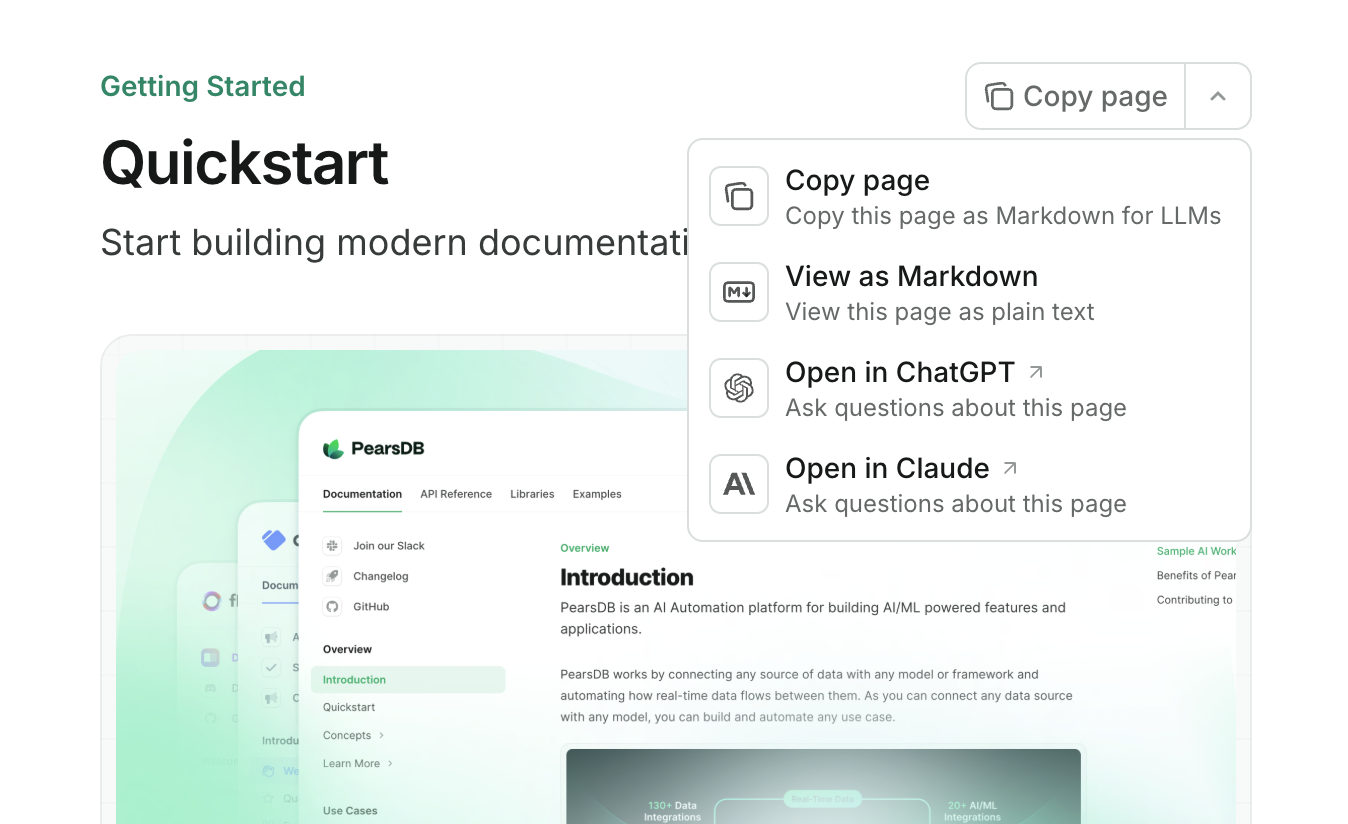
copy: Copy the current page as Markdown to the clipboard.view: View the current page as Markdown in a new tab.chatgpt: Send the current page content to ChatGPT.claude: Send the current page content to Claude.perplexity: Send the current page content to Perplexity.mcp: Copies your MCP server URL to the clipboard.cursor: Installs your hosted MCP server in Cursor.vscode: Installs your hosted MCP server in VSCode.
The contextual menu is only available on preview and production deployments.
API Configurations
object
API documentation and interactive playground settings.
Show Api
Show Api
string or array or object
string or array or object
object
Display settings for API parameters.
Show Params
Show Params
"all" | "closed"
Whether to expand all parameters by default. Defaults to
closed.object
object
object
Configurations for API pages generated from
MDX files.SEO and search
object
SEO indexing configurations.
Show Seo
Show Seo
object
Meta tags added to every page. Must be a valid key-value pair. See common meta tags reference for options.
"navigable" | "all"
Specify which pages search engines should index. Choose
navigable to index only pages that are in your docs.json navigation or choose all to index every page. Defaults to navigable.Integrations
object
Third-party integrations.
Show Integrations
Show Integrations
object
Front chat integration.
Show Frontchat
Show Frontchat
string
required
Your Front chat snippet ID.Minimum length: 6
object
Google Analytics 4 integration.
Show Ga4
Show Ga4
string matching ^G
required
Your Google Analytics 4 measurement ID.Must match pattern: ^G
object
Google Tag Manager integration.
Show Gtm
Show Gtm
string matching ^G
required
Your Google Tag Manager tag ID.Must match pattern: ^G
object
object
object
Errors
object
Examples
- Basic example
- Interactive API example
- Multi-language example
docs.json
{
  "$schema": "https://mintlify.com/docs.json",
  "theme": "maple",
  "name": "Example Co.",
  "description": "Example Co. is a company that provides example content and placeholder text.",
  "colors": {
    "primary": "#3B82F6",
    "light": "#F8FAFC",
    "dark": "#0F172A"
  },
  "navigation": {
    "dropdowns": [
      {
        "dropdown": "Documentation",
        "icon": "book",
        "description": "How to use the Example Co. product",
        "groups": [
          {
            "group": "Getting started",
            "pages": [
              "index",
              "quickstart"
            ]
          },
          {
            "group": "Customization",
            "pages": [
              "settings",
              "users",
              "features"
            ]
          },
          {
            "group": "Billing",
            "pages": [
              "billing/overview",
              "billing/payments",
              "billing/subscriptions"
            ]
          }
        ]
      },
      {
        "dropdown": "Changelog",
        "icon": "history",
        "description": "Updates and changes",
        "pages": [
          "changelog"
        ]
      }
    ]
  },
  "logo": {
    "light": "/logo-light.svg",
    "dark": "/logo-dark.svg",
    "href": "https://example.com"
  },
  "navbar": {
    "links": [
      {
        "label": "Community",
        "href": "https://example.com/community"
      }
    ],
    "primary": {
      "type": "button",
      "label": "Get Started",
      "href": "https://example.com/start"
    }
  },
  "footer": {
    "socials": {
      "x": "https://x.com/example",
      "linkedin": "https://www.linkedin.com/company/example",
      "github": "https://github.com/example",
      "slack": "https://example.com/community"
    },
    "links": [
      {
        "header": "Resources",
        "items": [
          {
            "label": "Customers",
            "href": "https://example.com/customers"
          },
          {
            "label": "Enterprise",
            "href": "https://example.com/enterprise"
          },
          {
            "label": "Request Preview",
            "href": "https://example.com/preview"
          }
        ]
      },
      {
        "header": "Company",
        "items": [
          {
            "label": "Careers",
            "href": "https://example.com/careers"
          },
          {
            "label": "Blog",
            "href": "https://example.com/blog"
          },
          {
            "label": "Privacy Policy",
            "href": "https://example.com/legal/privacy"
          }
        ]
      }
    ]
  },
  "integrations": {
    "ga4": {
      "measurementId": "G-XXXXXXXXXX"
    },
    "koala": {
      "publicApiKey": "pk_example_key_123"
    },
    "telemetry": {
      "enabled": true
    },
    "cookies": {
      "key": "example_cookie_key",
      "value": "example_cookie_value"
    }
  },
  "contextual": {
    "options": [
      "copy",
      "view",
      "chatgpt",
      "claude"
    ]
  },
  "errors": {
    "404": {
      "redirect": false,
      "title": "I can't be found",
      "description": "What ever **happened** to this _page_?"
    }
  }
}
docs.json
{
  "$schema": "https://mintlify.com/docs.json",
  "theme": "maple",
  "name": "Example Co.",
  "description": "Example Co. is a company that provides example content and placeholder text.",
  "colors": {
    "primary": "#3B82F6",
    "light": "#F8FAFC",
    "dark": "#0F172A"
  },
  "navigation": {
    "dropdowns": [
      {
        "dropdown": "Documentation",
        "icon": "book",
        "description": "How to use the Example Co. product",
        "groups": [
          {
            "group": "Getting started",
            "pages": [
              "index",
              "quickstart"
            ]
          },
          {
            "group": "Customization",
            "pages": [
              "settings",
              "users",
              "features"
            ]
          },
          {
            "group": "Billing",
            "pages": [
              "billing/overview",
              "billing/payments",
              "billing/subscriptions"
            ]
          }
        ]
      },
      {
        "dropdown": "API reference",
        "icon": "terminal",
        "description": "How to use the Example Co. API",
        "groups": [
          {
            "group": "API reference",
            "pages": [
              "api-reference/introduction"
            ]
          },
          {
            "group": "Endpoints",
            "openapi": {
              "source": "openapi.json"
            }
          }
        ]
      },
      {
        "dropdown": "Changelog",
        "icon": "history",
        "description": "Updates and changes",
        "pages": [
          "changelog"
        ]
      }
    ]
  },
  "api": {
    "playground": {
      "display": "interactive"
    },
    "examples": {
      "languages": ["javascript", "curl", "python"]
    }
  },
  "logo": {
    "light": "/logo-light.svg",
    "dark": "/logo-dark.svg",
    "href": "https://example.com"
  },
  "navbar": {
    "links": [
      {
        "label": "Community",
        "href": "https://example.com/community"
      }
    ],
    "primary": {
      "type": "button",
      "label": "Get Started",
      "href": "https://example.com/start"
    }
  },
  "footer": {
    "socials": {
      "x": "https://x.com/example",
      "linkedin": "https://www.linkedin.com/company/example",
      "github": "https://github.com/example",
      "slack": "https://example.com/community"
    },
    "links": [
      {
        "header": "Resources",
        "items": [
          {
            "label": "Customers",
            "href": "https://example.com/customers"
          },
          {
            "label": "Enterprise",
            "href": "https://example.com/enterprise"
          },
          {
            "label": "Request Preview",
            "href": "https://example.com/preview"
          }
        ]
      },
      {
        "header": "Company",
        "items": [
          {
            "label": "Careers",
            "href": "https://example.com/careers"
          },
          {
            "label": "Blog",
            "href": "https://example.com/blog"
          },
          {
            "label": "Privacy Policy",
            "href": "https://example.com/legal/privacy"
          }
        ]
      }
    ]
  },
  "integrations": {
    "ga4": {
      "measurementId": "G-XXXXXXXXXX"
    },
    "koala": {
      "publicApiKey": "pk_example_key_123"
    },
    "telemetry": {
      "enabled": true
    },
    "cookies": {
      "key": "example_cookie_key",
      "value": "example_cookie_value"
    }
  },
  "contextual": {
    "options": [
      "copy",
      "view",
      "chatgpt",
      "claude"
    ]
  },
  "errors": {
    "404": {
      "redirect": false,
      "title": "I can't be found",
      "description": "What ever **happened** to this _page_?"
    }
  }
}
docs.json
{
  "$schema": "https://mintlify.com/docs.json",
  "theme": "maple",
  "name": "Example Co.",
  "description": "Example Co. is a company that provides example content and placeholder text.",
  "colors": {
    "primary": "#3B82F6",
    "light": "#F8FAFC",
    "dark": "#0F172A"
  },
  "navigation": {
    "global": {
      "anchors": [
        {
          "anchor": "Documentation",
          "href": "https://mintlify.com/docs"
        },
        {
          "anchor": "Changelog",
          "href": "https://mintlify.com/docs/changelog"
        }
      ]
    },
    "languages": [
      {
        "language": "en",
        "dropdowns": [
          {
            "dropdown": "Documentation",
            "icon": "book",
            "description": "How to use the Example Co. product",
            "pages": [
              {
                "group": "Getting started",
                "pages": ["index", "quickstart"]
              },
              {
                "group": "Customization",
                "pages": ["settings", "users", "features"]
              },
              {
                "group": "Billing",
                "pages": [
                  "billing/overview",
                  "billing/payments",
                  "billing/subscriptions"
                ]
              }
            ]
          },
          {
            "dropdown": "Changelog",
            "icon": "history",
            "description": "Updates and changes",
            "pages": ["changelog"]
          }
        ]
      },
      {
        "language": "es",
        "dropdowns": [
          {
            "dropdown": "Documentación",
            "icon": "book",
            "description": "Cómo usar el producto de Example Co.",
            "pages": [
              {
                "group": "Comenzando",
                "pages": ["es/index", "es/quickstart"]
              },
              {
                "group": "Personalización",
                "pages": ["es/settings", "es/users", "es/features"]
              },
              {
                "group": "Billing",
                "pages": [
                  "es/billing/overview",
                  "es/billing/payments",
                  "es/billing/subscriptions"
                ]
              }
            ]
          },
          {
            "dropdown": "Changelog",
            "icon": "history",
            "description": "Actualizaciones y cambios",
            "pages": ["es/changelog"]
          }
        ]
      }
    ]
  },
  "logo": {
    "light": "/logo-light.svg",
    "dark": "/logo-dark.svg",
    "href": "https://example.com"
  },
  "navbar": {
    "links": [
      {
        "label": "Community",
        "href": "https://example.com/community"
      }
    ],
    "primary": {
      "type": "button",
      "label": "Get Started",
      "href": "https://example.com/start"
    }
  },
  "footer": {
    "socials": {
      "x": "https://x.com/example",
      "linkedin": "https://www.linkedin.com/company/example",
      "github": "https://github.com/example",
      "slack": "https://example.com/community"
    },
    "links": [
      {
        "header": "Resources",
        "items": [
          {
            "label": "Customers",
            "href": "https://example.com/customers"
          },
          {
            "label": "Enterprise",
            "href": "https://example.com/enterprise"
          },
          {
            "label": "Request Preview",
            "href": "https://example.com/preview"
          }
        ]
      },
      {
        "header": "Company",
        "items": [
          {
            "label": "Careers",
            "href": "https://example.com/careers"
          },
          {
            "label": "Blog",
            "href": "https://example.com/blog"
          },
          {
            "label": "Privacy Policy",
            "href": "https://example.com/legal/privacy"
          }
        ]
      }
    ]
  },
  "integrations": {
    "ga4": {
      "measurementId": "G-XXXXXXXXXX"
    },
    "koala": {
      "publicApiKey": "pk_example_key_123"
    },
    "telemetry": {
      "enabled": true
    },
    "cookies": {
      "key": "example_cookie_key",
      "value": "example_cookie_value"
    }
  },
  "contextual": {
    "options": ["copy", "view", "chatgpt", "claude"]
  },
  "errors": {
    "404": {
      "redirect": false,
      "title": "I can't be found",
      "description": "What ever **happened** to this _page_?"
    }
  }
}
Upgrading from mint.json
If your docs project uses the deprecated mint.json file, follow these steps to upgrade to docs.json.
1
Install or update the CLI
If you haven’t installed the CLI, install it now:If you already have the CLI installed, make sure it is up to date:
npm i -g mint
yarn global add mint
pnpm add -g mint
mint update
2
Create your docs.json file
In your docs repository, run:This command will create a
mint upgrade
docs.json file from your existing mint.json. Review the generated file to ensure all settings are correct.3
Delete your mint.json file
After verifying your
docs.json is configured properly, you can safely delete your old mint.json file.