> ## Documentation Index
> Fetch the complete documentation index at: https://omer-914cc1c6.mintlify.site/llms.txt
> Use this file to discover all available pages before exploring further.

# 更新日志

> 在文档中发布产品更新，并提供可订阅的 RSS 源

在页面中添加[Update 组件](/zh/components/update)，即可为文档创建更新日志。

查看 [Mintlify 更新日志](/zh/changelog) 作为示例：你可以在每次更新中加入链接、图片、文本，以及新功能演示。

<div id="setting-up-your-changelog">
  ## 设置更新日志
</div>

<Steps>
  <Step title="为更新日志创建页面">
    1. 在文档中创建一个新页面，例如 `changelog.mdx` 或 `updates.mdx`。
    2. 将该更新日志页面添加到 `docs.json` 的 navigation 配置中。
  </Step>

  <Step title="在更新日志中添加 Update 组件">
    为每条更新记录添加一个 `Update`。

    包含相关信息，例如功能发布、缺陷修复或其他公告。
  </Step>
</Steps>

```mdx Example changelog.mdx theme={null}
---
title: "更新日志"
description: "产品更新和公告"
---
<Update label="2025年3月" description="v0.0.10">
  新增冬青薄荷口味。

  绿薄荷口味发布新版本，薄荷含量提升10%。
</Update>

<Update label="2025年2月" description="v0.0.09">
  绿薄荷口味发布新版本。
</Update>
```

<div id="customizing-your-changelog">
  ## 自定义更新日志
</div>

控制读者如何浏览你的更新日志，并随时掌握产品动态。

<div id="table-of-contents">
  ### 目录
</div>

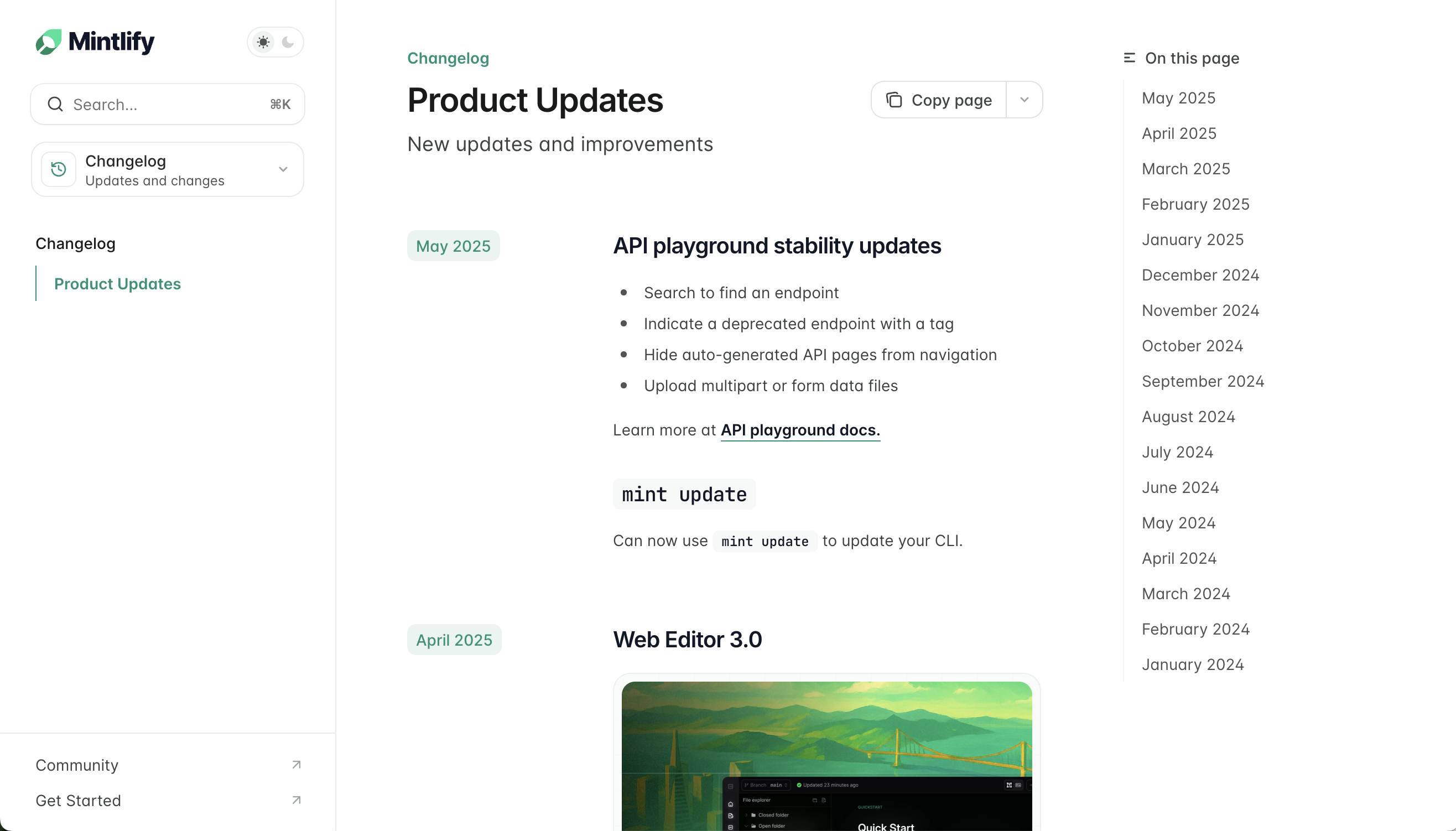
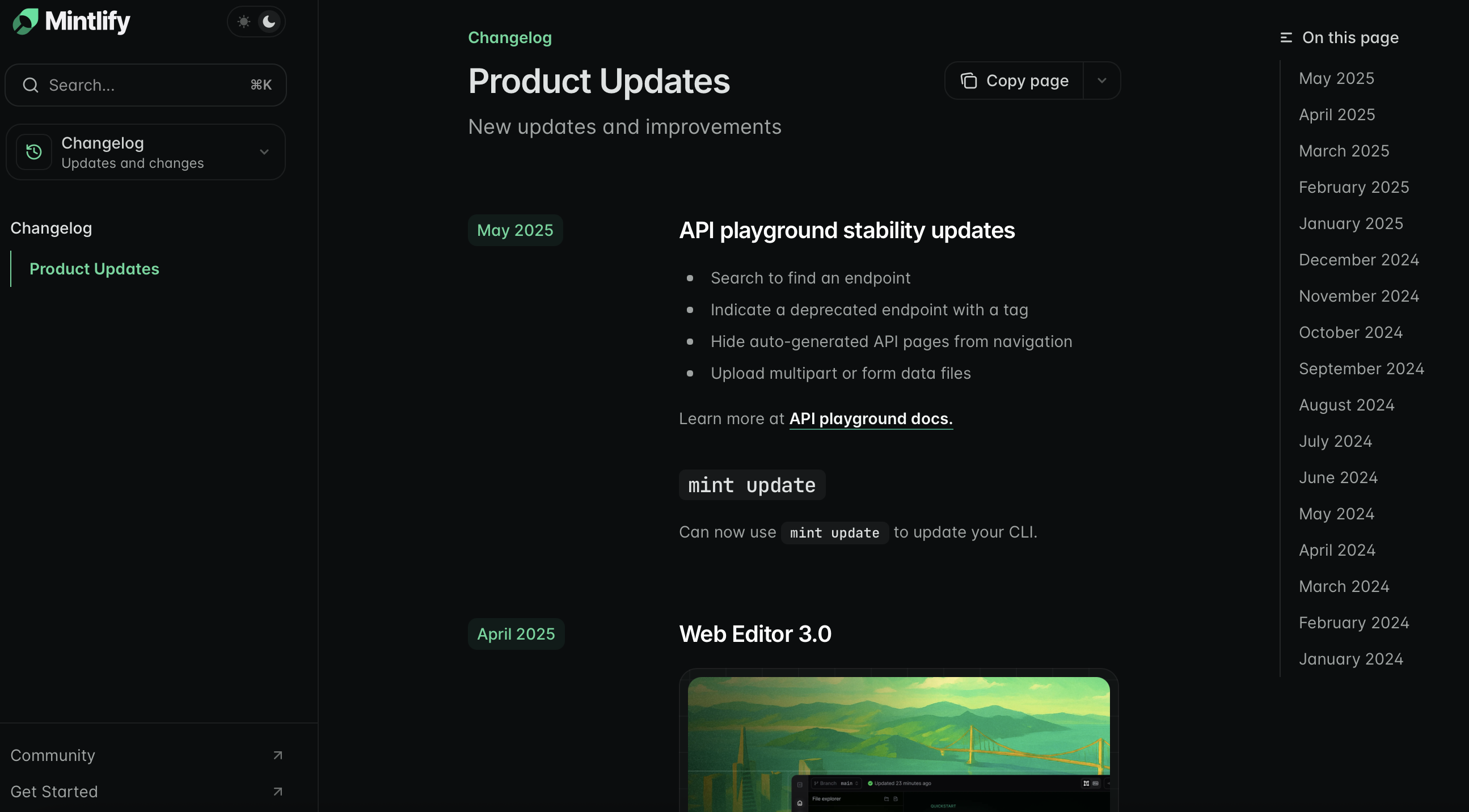
每个 `Update` 的 `label` 属性都会在右侧边栏的目录中自动创建一个条目。这是更新日志的默认导航方式。

<Frame>
  <img src="https://mintcdn.com/omer-914cc1c6/R6mDx4eU2EptKC2P/images/changelog-toc-light.png?fit=max&auto=format&n=R6mDx4eU2EptKC2P&q=85&s=8c16329ed1c814d832aae01ac8c9f161" alt="浅色模式下显示目录的更新日志。" className="block dark:hidden" width="2632" height="1502" data-path="images/changelog-toc-light.png" />

  <img src="https://mintcdn.com/omer-914cc1c6/R6mDx4eU2EptKC2P/images/changelog-toc-dark.png?fit=max&auto=format&n=R6mDx4eU2EptKC2P&q=85&s=9ac2ce4351fffb91c7382f30dc30e345" alt="深色模式下显示目录的更新日志。" className="hidden dark:block" width="2590" height="1432" data-path="images/changelog-toc-dark.png" />
</Frame>

<div id="tag-filters">
  ### 标签筛选
</div>

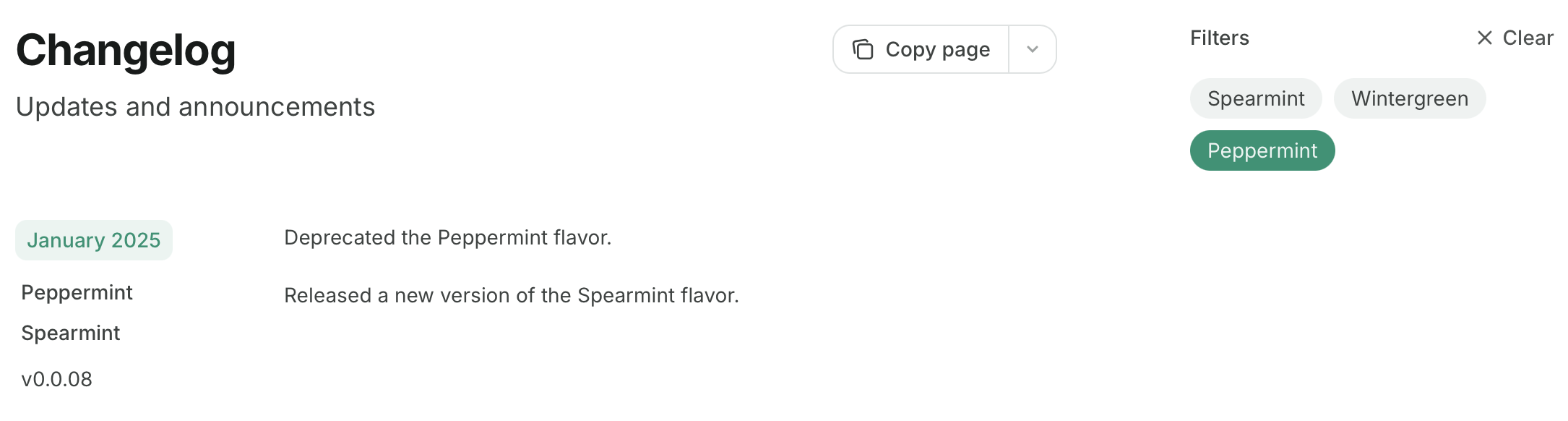
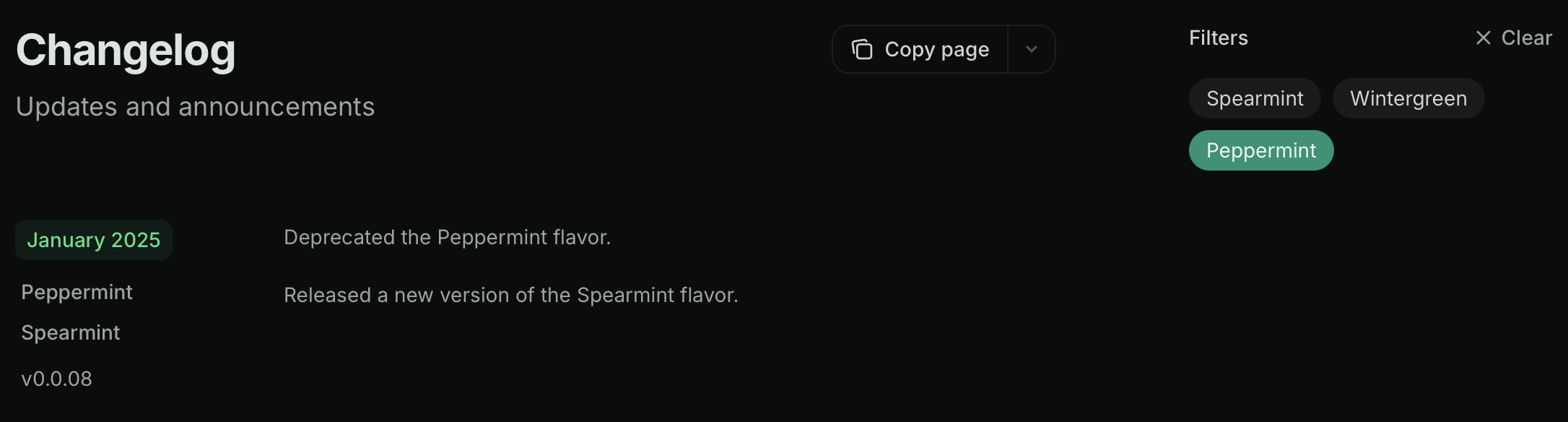
在 `Update` 组件中添加 `tags`，即可用标签筛选替代目录。用户可以通过选择一个或多个标签来筛选更新日志：

```mdx Tag filters example wrap theme={null}
<Update label="2025年3月" description="v0.0.10" tags={["Wintergreen", "Spearmint"]}>
  添加了新的 Wintergreen 口味。

  发布了新版本的 Spearmint 口味，现在薄荷含量增加了 10%。
</Update>

<Update label="2025年2月" description="v0.0.09" tags={["Spearmint"]}>
  发布了新版本的 Spearmint 口味。
</Update>

<Update label="2025年1月" description="v0.0.08" tags={["Peppermint", "Spearmint"]}>
  已废弃 Peppermint 口味。

  发布了新版本的 Spearmint 口味。
</Update>
```

<Frame>
  <img src="https://mintcdn.com/omer-914cc1c6/R6mDx4eU2EptKC2P/images/changelog-filters-light.png?fit=max&auto=format&n=R6mDx4eU2EptKC2P&q=85&s=f43e7c62526bc32a1be9568f7311dd9b" alt="浅色模式下的更新日志，已选择 Peppermint 标签筛选器。" className="block dark:hidden" width="2170" height="582" data-path="images/changelog-filters-light.png" />

  <img src="https://mintcdn.com/omer-914cc1c6/R6mDx4eU2EptKC2P/images/changelog-filters-dark.png?fit=max&auto=format&n=R6mDx4eU2EptKC2P&q=85&s=e723d7f298ad1a892f6cd0d02b7537d3" alt="深色模式下的更新日志，已选择 Peppermint 标签筛选器。" className="hidden dark:block" width="2172" height="584" data-path="images/changelog-filters-dark.png" />
</Frame>

<Tip>
  当使用 `custom`、`center` 或 `wide` 页面模式时，目录和更新日志筛选器将被隐藏。了解更多[页面模式](/zh/pages#page-mode)。
</Tip>

<div id="subscribable-changelogs">
  ### 可订阅的更新日志
</div>

使用 `Update` 组件会在页面的 URL 后追加 `/rss.xml`，从而创建一个可订阅的 RSS 源。例如：`mintlify.com/docs/changelog/rss.xml`。

当发布新的 `Update` 组件，或在现有的 `<Update>` 标签内新增标题时，RSS 源会新增条目。

`Update` 组件的顶级标题将作为 RSS 源条目的标题，且这些条目会链接到文档中对应标题的锚点。

```xml Example RSS feed theme={null}
<?xml version="1.0" encoding="UTF-8"?>
<rss xmlns:dc="http://purl.org/dc/elements/1.1/" xmlns:content="http://purl.org/rss/1.0/modules/content/" xmlns:atom="http://www.w3.org/2005/Atom" version="2.0">
  <channel>
    <title><![CDATA[产品更新]]></title>
    <description><![CDATA[新功能更新与改进]]></description>
    <link>https://mintlify.com/docs</link>
    <generator>RSS for Node</generator>
    <lastBuildDate>Mon, 21 Jul 2025 21:21:47 GMT</lastBuildDate>
    <atom:link href="https://mintlify.com/docs/changelog/rss.xml" rel="self" type="application/rss+xml"/>
    <copyright><![CDATA[Mintlify]]></copyright>
    <docs>https://mintlify.com/docs</docs>
    <item>
      <title><![CDATA[2025年6月]]></title>
      <link>https://mintlify.com/docs/changelog#june-2025</link>
      <guid isPermaLink="true">https://mintlify.com/docs/changelog#june-2025</guid>
      <pubDate>Mon, 23 Jun 2025 16:54:22 GMT</pubDate>
    </item>
  </channel>
</rss>
```

RSS 源可以与 Slack、电子邮件或其他订阅工具集成，用于通知用户产品更新。可选项包括：

* [Slack](https://slack.com/help/articles/218688467-Add-RSS-feeds-to-Slack)
* 通过 Zapier 的 [Email](https://zapier.com/apps/email/integrations/rss/1441/send-new-rss-feed-entries-via-email)
* 像 [Readybot](https://readybot.io) 或 [RSS Feeds to Discord Bot](https://rss.app/en/bots/rssfeeds-discord-bot) 这样的 Discord 机器人

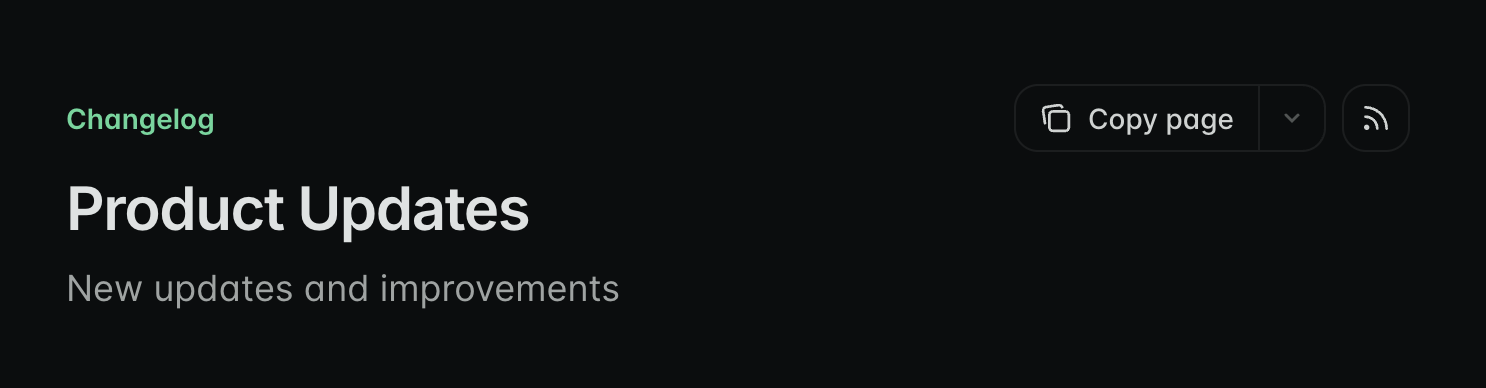
为便于发现 RSS 源，你可以在页面顶部显示一个链接到该源的 RSS icon 按钮。在页面 frontmatter 中添加 `rss: true`：

```mdx theme={null}
---
rss: true
---
```
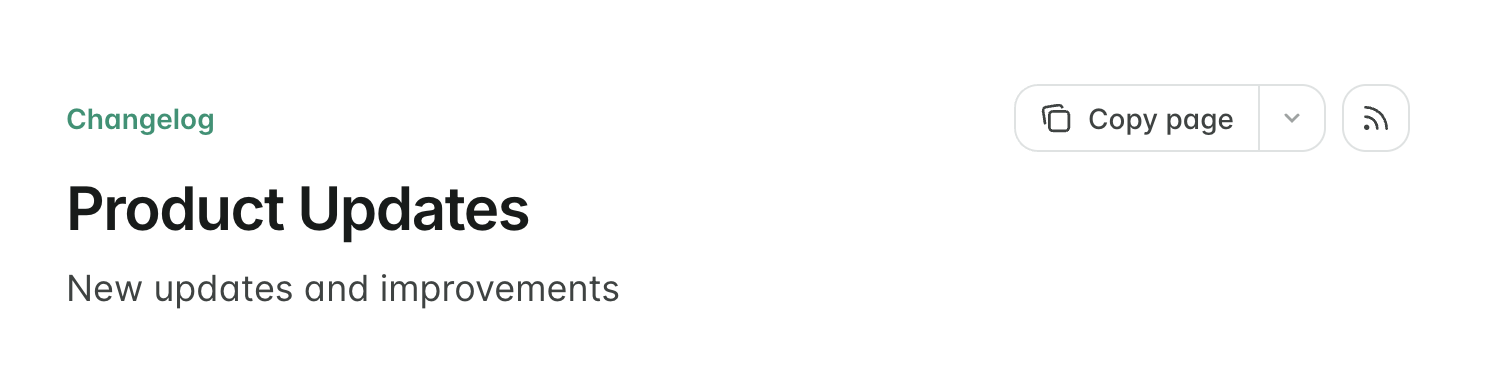
<Frame>
  <img src="https://mintcdn.com/omer-914cc1c6/R6mDx4eU2EptKC2P/images/changelog-rss-button-light.png?fit=max&auto=format&n=R6mDx4eU2EptKC2P&q=85&s=6f311de37b9c20f599301c8293394aa1" alt="浅色模式的更新日志页面，已启用 RSS 订阅按钮。" className="block dark:hidden" width="1486" height="388" data-path="images/changelog-rss-button-light.png" />

  <img src="https://mintcdn.com/omer-914cc1c6/R6mDx4eU2EptKC2P/images/changelog-rss-button-dark.png?fit=max&auto=format&n=R6mDx4eU2EptKC2P&q=85&s=8e0eadc5a58b3df94ab67e5638ab779f" alt="深色模式的更新日志页面，已启用 RSS 订阅按钮。" className="hidden dark:block" width="1486" height="388" data-path="images/changelog-rss-button-dark.png" />
</Frame>