> ## Documentation Index
> Fetch the complete documentation index at: https://omer-914cc1c6.mintlify.site/llms.txt
> Use this file to discover all available pages before exploring further.

# 发布你的更改

> 直接将文档更新部署到生产环境，或通过拉取请求进行发布

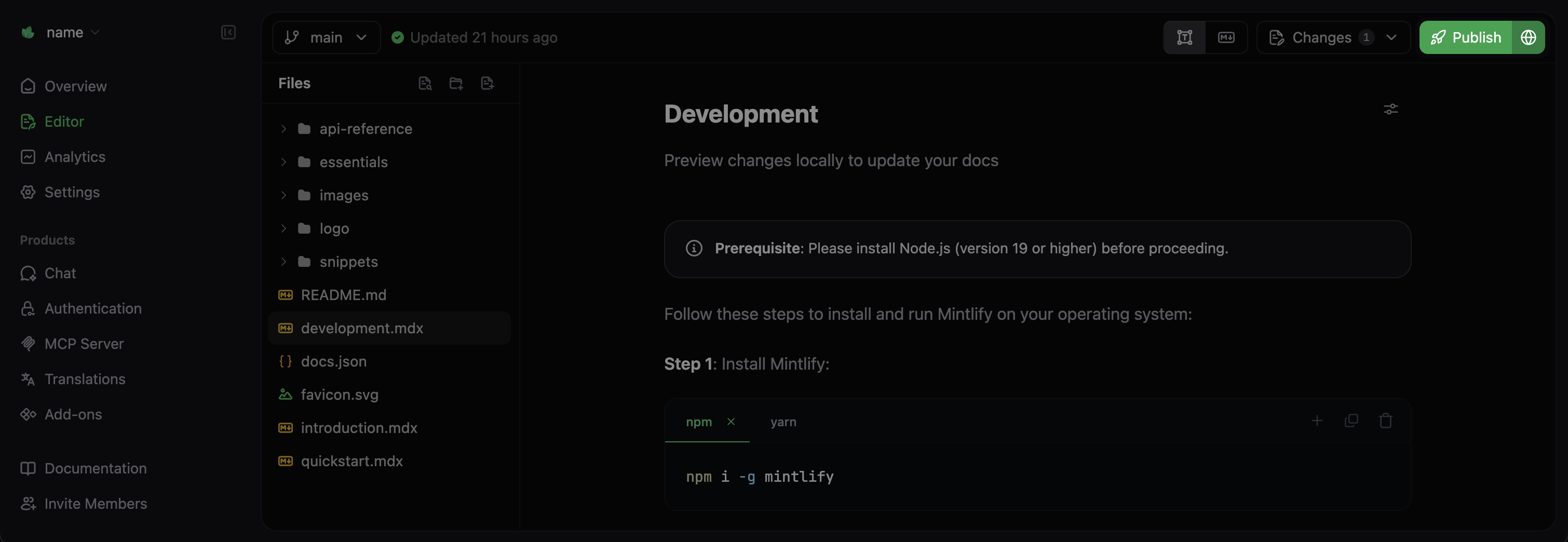
更改的发布方式取决于你当前所在的 branch：

* **部署用分支**：发布会立即更新你的线上站点。
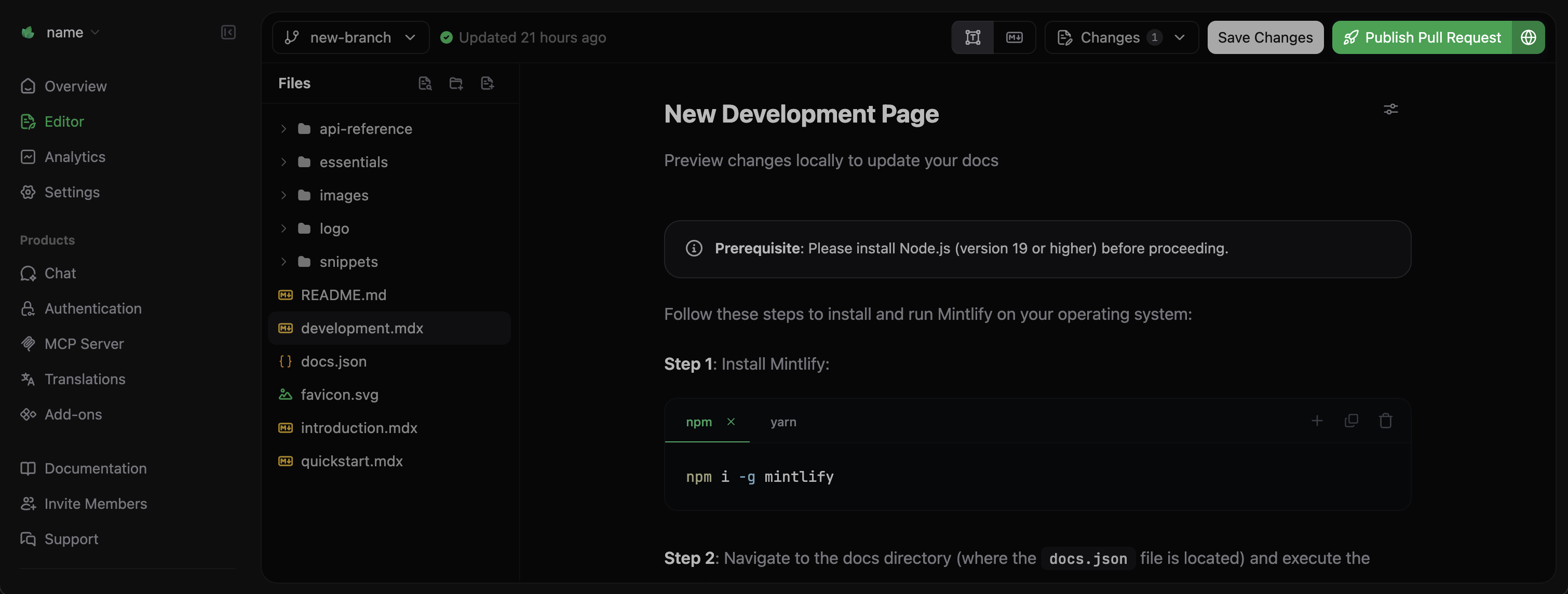
* **其他分支**：发布会创建一个拉取请求（PR；亦称“合并请求”/Merge Request），以便你在部署到生产环境之前审阅更改。

<Frame>
  <img src="https://mintcdn.com/omer-914cc1c6/1pfjDJXEL6HIHDKE/images/editor/publish-flow-light.png?fit=max&auto=format&n=1pfjDJXEL6HIHDKE&q=85&s=6e8d14e28f808d042d2abe1424368e39" alt="Mintlify 网页编辑器中被突出显示的“发布”按钮" className="block dark:hidden" width="3024" height="1046" data-path="images/editor/publish-flow-light.png" />

  <img src="https://mintcdn.com/omer-914cc1c6/AiL60EGGBeap42Y0/images/editor/publish-flow-dark.png?fit=max&auto=format&n=AiL60EGGBeap42Y0&q=85&s=237e568853074b0d5fd770f582195759" alt="Mintlify 网页编辑器中被突出显示的“发布”按钮" className="hidden dark:block" width="3020" height="1044" data-path="images/editor/publish-flow-dark.png" />
</Frame>

<div id="pull-requests-and-reviewing-changes">
  ## 拉取请求（PR；亦称“合并请求”/Merge Request）与变更审查
</div>

拉取请求允许你从自己的 branch 提交更改，便于他人在合并到线上文档之前进行审查。这样有助于确保更改的准确性，并为团队协作完善内容提供机会。

<Tip>
  即使你独自工作，拉取请求也有助于预览更改并维护清晰的更新历史。
</Tip>

<div id="creating-a-pull-request">
  ### 创建拉取请求（pull request）
</div>

<Steps>
  <Step title="保存你的工作">
    确保你所有的更改已通过 **保存更改** 提交到你的 branch。
  </Step>

  <Step title="创建拉取请求">
    在编辑器右上角选择 **Publish Pull Request**。
  </Step>

  <Step title="添加标题和说明">
    撰写清晰的标题和说明，说明：

    * 你做了哪些更改
    * 你为什么进行这些更改
    * 有哪些需要重点审查的部分
  </Step>

  <Step title="创建并分享">
    选择 **Publish Pull Request**。编辑器会提供一个链接以查看你的拉取请求。

    <Frame>
      <img src="https://mintcdn.com/omer-914cc1c6/1pfjDJXEL6HIHDKE/images/editor/pull-request-light.png?fit=max&auto=format&n=1pfjDJXEL6HIHDKE&q=85&s=5b3ca559ad085f9463366ce0a3a53fe4" alt="Mintlify 网页编辑器中突出显示的 Publish Pull Request 按钮" className="block dark:hidden" width="3024" height="1146" data-path="images/editor/pull-request-light.png" />

      <img src="https://mintcdn.com/omer-914cc1c6/1pfjDJXEL6HIHDKE/images/editor/pull-request-dark.png?fit=max&auto=format&n=1pfjDJXEL6HIHDKE&q=85&s=dc787bc6187443e0434d5c452149ec93" alt="Mintlify 网页编辑器中突出显示的 Publish Pull Request 按钮" className="hidden dark:block" width="3020" height="1144" data-path="images/editor/pull-request-dark.png" />
    </Frame>
  </Step>
</Steps>

<div id="reviewing-pull-requests">
  ## 审查拉取请求（PR）
</div>

创建拉取请求后：

1. **审阅更改**：你和团队成员可以在 Git 提供商（如 GitHub 或 GitLab）中审阅你的拉取请求。
2. **留下反馈**：添加评论或请求更改。
3. **进行进一步更改**：在网页编辑器中继续修改。点击“保存更改”后，编辑器会将更新推送到你的拉取请求。
4. **批准**：对更改满意后，批准该拉取请求。
5. **合并**：准备将更改部署到生产环境时，合并该拉取请求。