> ## Documentation Index
> Fetch the complete documentation index at: https://omer-914cc1c6.mintlify.site/llms.txt
> Use this file to discover all available pages before exploring further.

# 使用网页版编辑器入门

> 了解如何使用网页版编辑器创建和编辑文档

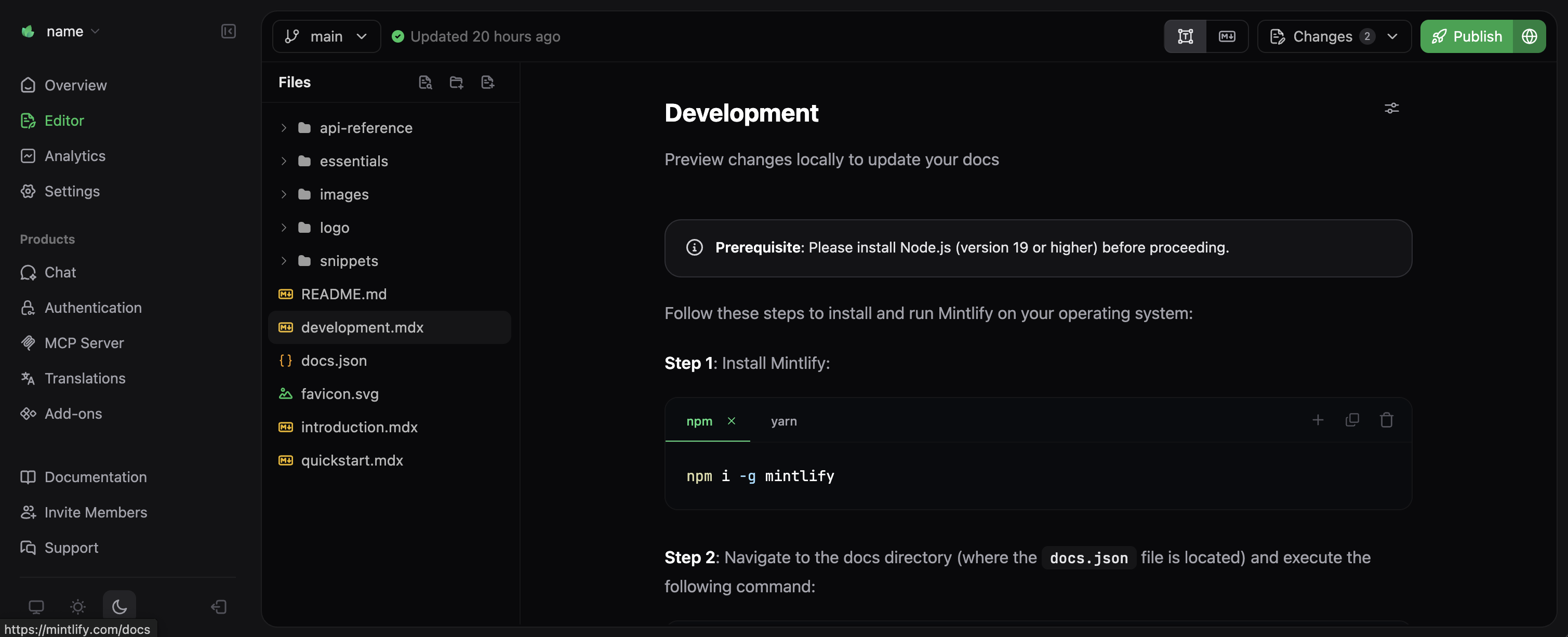
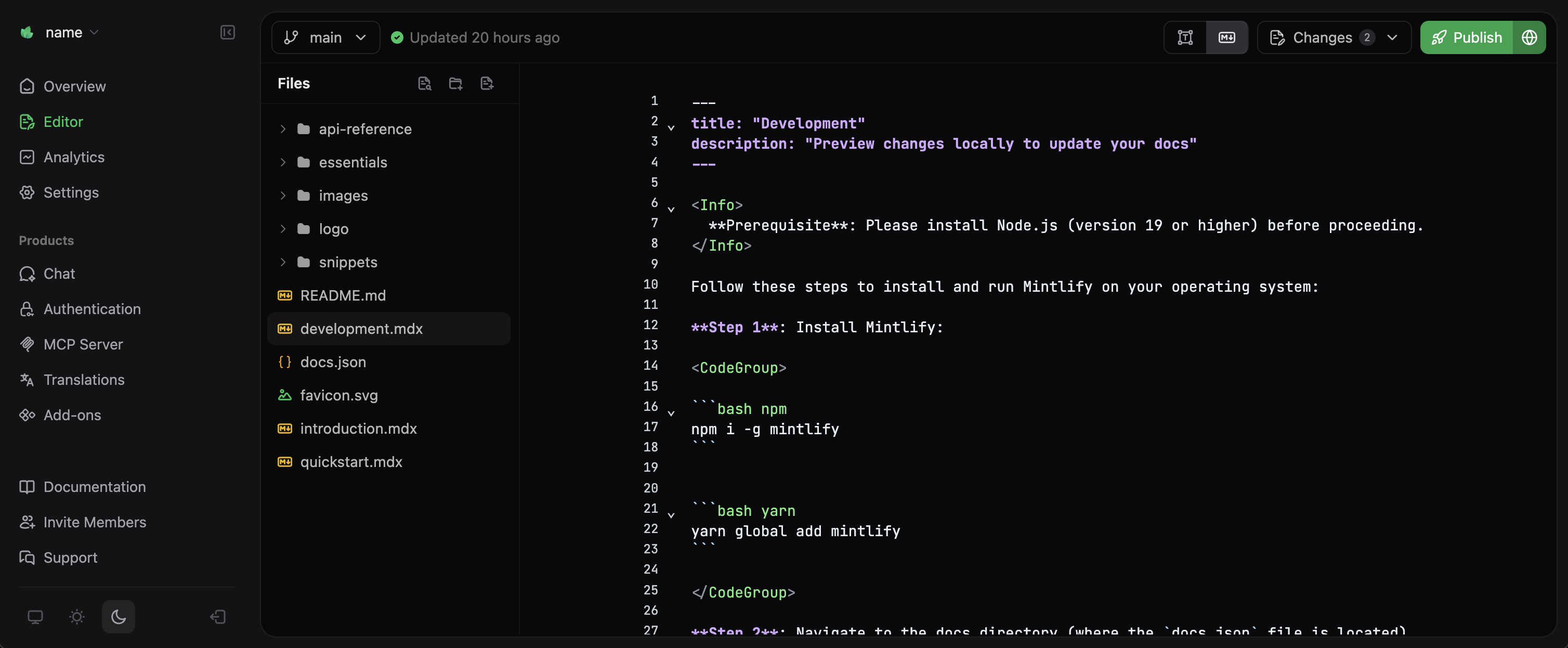
<img className="block dark:hidden my-0 pointer-events-none" src="https://mintcdn.com/omer-914cc1c6/AiL60EGGBeap42Y0/images/editor/editor-light.png?fit=max&auto=format&n=AiL60EGGBeap42Y0&q=85&s=f5b9307f62ca5d00a4cb58ced31f4ba6" alt="浅色模式下的 Mintlify 网页版编辑器界面" width="1184" height="320" data-path="images/editor/editor-light.png" />

<img className="hidden dark:block my-0 pointer-events-none" src="https://mintcdn.com/omer-914cc1c6/AiL60EGGBeap42Y0/images/editor/editor-dark.png?fit=max&auto=format&n=AiL60EGGBeap42Y0&q=85&s=ed4f1674ab628904a760aae6779425bd" alt="深色模式下的 Mintlify 网页版编辑器界面" width="1184" height="320" data-path="images/editor/editor-dark.png" />

网页版编辑器是在浏览器中直接用于创建、编辑和审阅文档的可视化界面。

* **可视化编辑**：使用 WYSIWYG（所见即所得）编辑器修改文档，所见即发布效果。
* **Git 同步**：所有更改会自动与您的 Git 存储库同步，确保版本控制。
* **团队协作**：支持多人同时编辑文档。
* **组件集成**：通过斜杠命令快速添加提示、代码块等组件。
* **无需配置**：从控制台即可立即开始写作。

<div id="web-editor-workflow">
  ## Web 编辑器工作流
</div>

以下是在 Web 编辑器中的典型工作方式：

<Steps>
  <Step title="Choose your branch">
    创建一个 branch，或直接在你的部署用分支上修改。我们建议创建一个 branch，这样你可以在更改上线前先预览。
  </Step>

  <Step title="Open your file">
    在侧边栏找到现有文件，或通过文件资源管理器新建文件。
  </Step>

  <Step title="Edit your content">
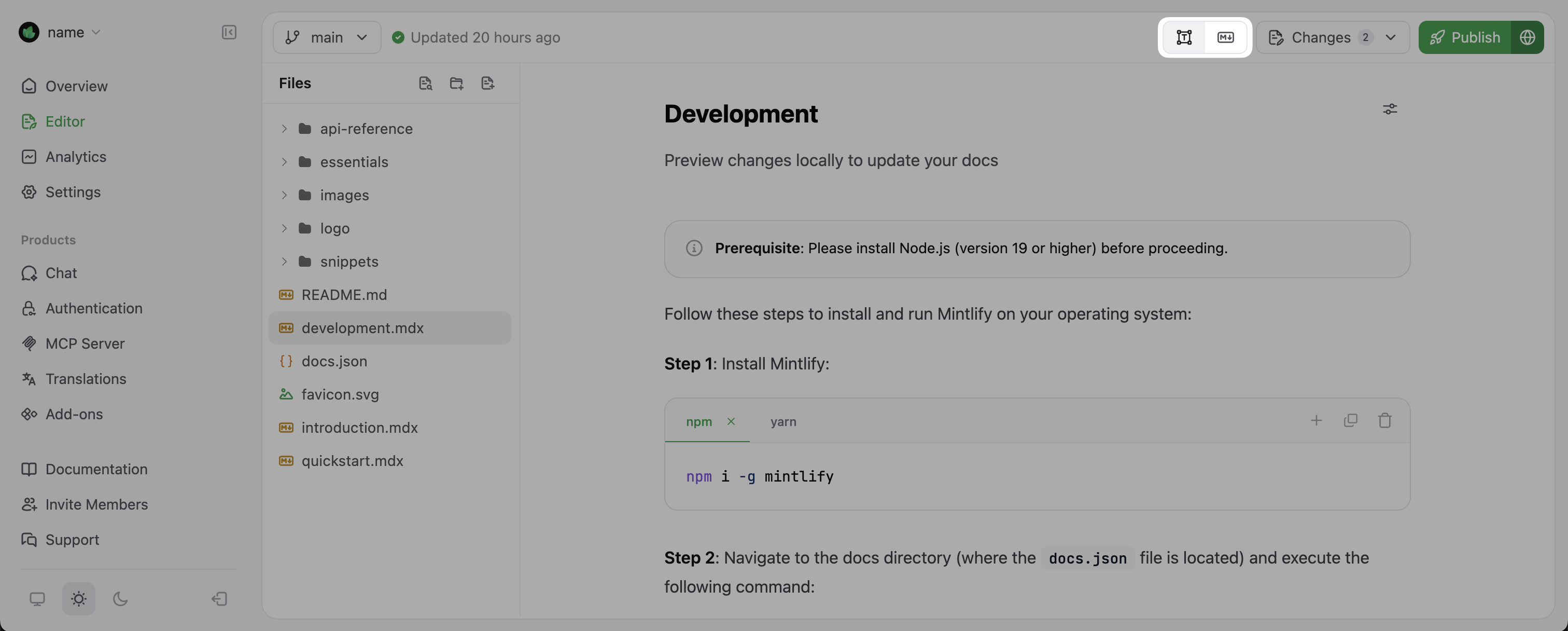
    在 Web 编辑器中进行修改。尝试使用右上角的切换按钮在可视化模式和 Markdown 模式之间切换，看看你更喜欢哪种模式。
  </Step>

  <Step title="Preview your changes">
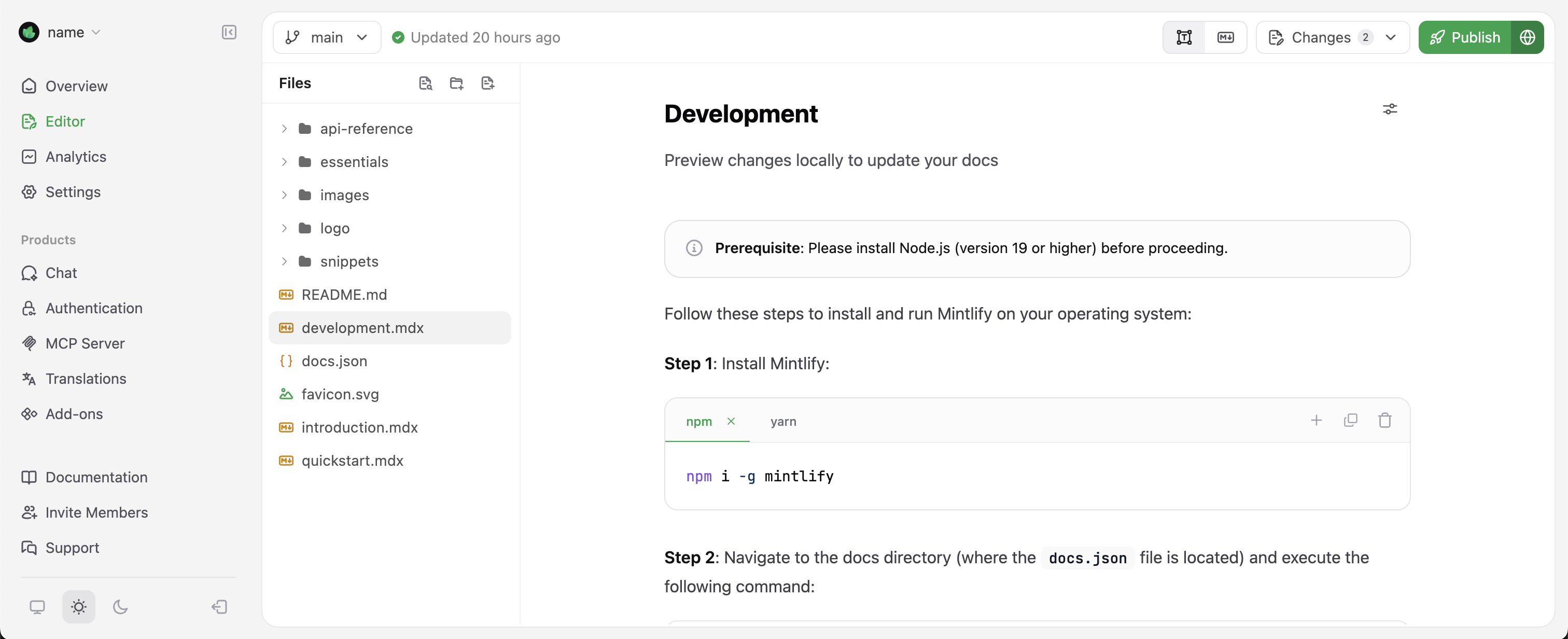
    可视化模式会显示你的更改在上线站点上的呈现效果。用它来检查一切是否正确。
  </Step>

  <Step title="Publish your changes">
    如果你在部署用分支上工作，可直接从 Web 编辑器发布更改。对于其他 branch，你需要创建一个拉取请求（PR；亦称“合并请求”/Merge Request），在发布前进行审查。
  </Step>
</Steps>

<div id="editor-modes">
  ## 编辑器模式
</div>

Web 编辑器提供两种模式，以满足不同的编辑偏好和需求。使用编辑器工具栏右上角的切换按钮在两种模式间切换。
<Frame>
  <img src="https://mintcdn.com/omer-914cc1c6/AiL60EGGBeap42Y0/images/editor/mode-toggle-light.png?fit=max&auto=format&n=AiL60EGGBeap42Y0&q=85&s=eaf266da91f2e616c73564c49bbee776" alt="Web 编辑器中高亮显示的模式切换图标。" className="block dark:hidden" width="3024" height="1216" data-path="images/editor/mode-toggle-light.png" />

  <img src="https://mintcdn.com/omer-914cc1c6/AiL60EGGBeap42Y0/images/editor/mode-toggle-dark.png?fit=max&auto=format&n=AiL60EGGBeap42Y0&q=85&s=1177b32348eb6209abc5a89000d00bc3" alt="Web 编辑器中高亮显示的模式切换图标。" className="hidden dark:block" width="3016" height="1212" data-path="images/editor/mode-toggle-dark.png" />
</Frame>

<div id="visual-mode">
  ### 可视化模式
</div>

可视化模式提供 WYSIWYG（所见即所得）体验：你在编辑器中所做的更改将与发布到文档站点的效果完全一致。此模式非常适合希望实时查看更改呈现效果的场景。

按下“/”打开组件菜单，添加样式化内容、提醒、代码片段或其他组件。

<Frame>
  <img src="https://mintcdn.com/omer-914cc1c6/1pfjDJXEL6HIHDKE/images/editor/visual-mode-light.png?fit=max&auto=format&n=1pfjDJXEL6HIHDKE&q=85&s=af73ef24f74aa0634b32c77f6b3c5f3c" alt="Mintlify 网页编辑器中的可视化编辑模式" className="block dark:hidden" width="3024" height="1232" data-path="images/editor/visual-mode-light.png" />

  <img src="https://mintcdn.com/omer-914cc1c6/1pfjDJXEL6HIHDKE/images/editor/visual-mode-dark.png?fit=max&auto=format&n=1pfjDJXEL6HIHDKE&q=85&s=d810bd3db962d058f86871e4e16e9b0e" alt="Mintlify 网页编辑器中的可视化编辑模式" className="hidden dark:block" width="3018" height="1226" data-path="images/editor/visual-mode-dark.png" />
</Frame>

<div id="markdown-mode">
  ### Markdown 模式
</div>

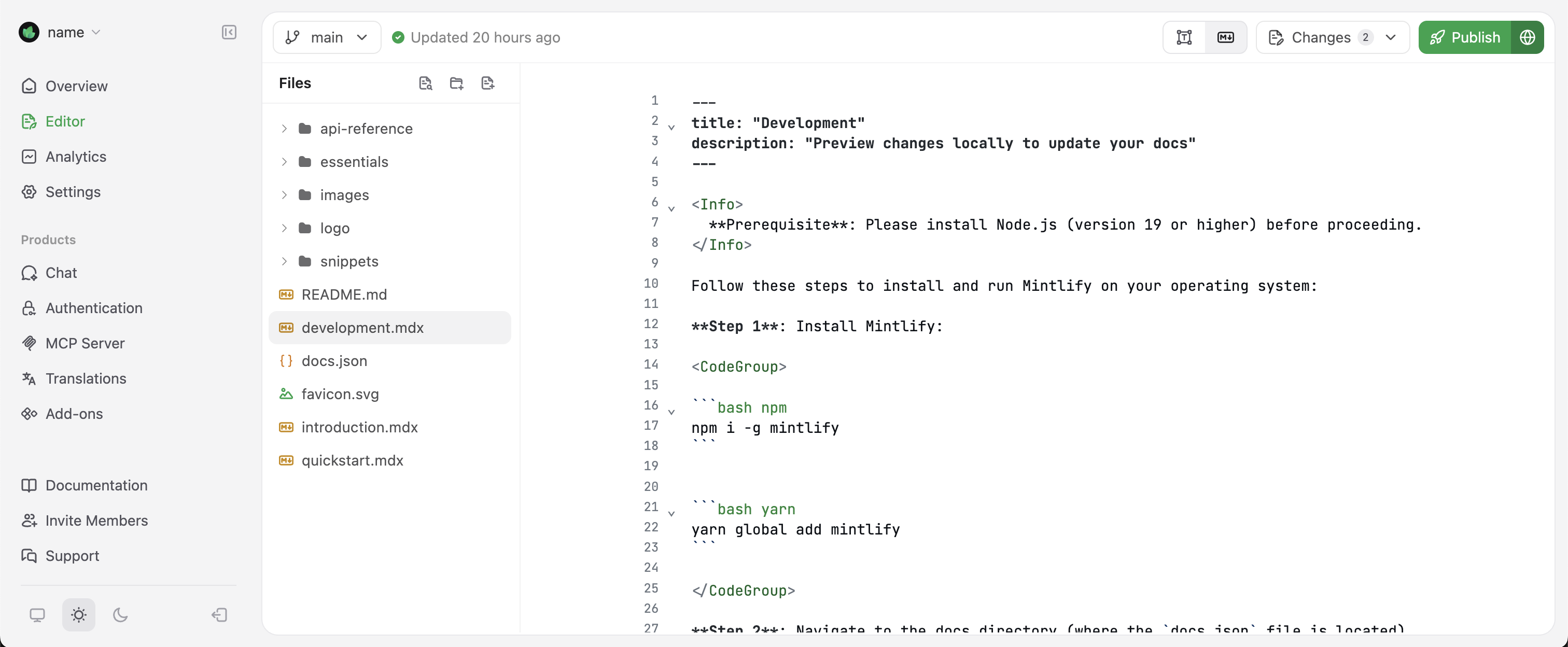
Markdown 模式可直接访问文档的底层 `MDX` 代码。该模式适用于需要精确控制组件属性，或偏好使用 Markdown 语法编写内容的场景。

<Frame>
  <img src="https://mintcdn.com/omer-914cc1c6/AiL60EGGBeap42Y0/images/editor/markdown-mode-light.png?fit=max&auto=format&n=AiL60EGGBeap42Y0&q=85&s=10cb0a57a11e812861cea36cc2c0088e" alt="Mintlify 网页编辑器中的 Markdown 模式" className="block dark:hidden" width="3024" height="1248" data-path="images/editor/markdown-mode-light.png" />

  <img src="https://mintcdn.com/omer-914cc1c6/AiL60EGGBeap42Y0/images/editor/markdown-mode-dark.png?fit=max&auto=format&n=AiL60EGGBeap42Y0&q=85&s=fb0d0dd0f4d18b85376e5ff10c068a41" alt="Mintlify 网页编辑器中的 Markdown 模式" className="hidden dark:block" width="3016" height="1246" data-path="images/editor/markdown-mode-dark.png" />
</Frame>

<div id="next-steps">
  ## 后续步骤
</div>

* 学习基础的 [Git 概念](/zh/editor/git-concepts)。
* 学习使用 [branch](/zh/editor/branches) 协作的最佳实践。
* 使用网页版编辑器探索 [content 管理](/zh/editor/content-management)。
* 了解适用于不同场景的 [发布选项](/zh/editor/publishing)。