> ## Documentation Index
> Fetch the complete documentation index at: https://omer-914cc1c6.mintlify.site/llms.txt
> Use this file to discover all available pages before exploring further.

# 管理内容

> 创建、编辑和组织文档页面

<div id="navigating-your-files">
  ## 浏览你的文件
</div>

使用侧边栏的文件浏览器浏览文档。点击任意文件即可在编辑器中打开。

按 <kbd>Command</kbd> + <kbd>P</kbd>（Windows 上为 <kbd>Ctrl</kbd> + <kbd>P</kbd>）可按名称搜索文件。

<div id="creating-new-pages">
  ## 创建新页面
</div>

<Steps>
  <Step title="新建文件">
    在文件资源管理器侧边栏中选择“新建文件”图标。

    <img
      src="https://mintcdn.com/omer-914cc1c6/AiL60EGGBeap42Y0/images/editor/files-menu-light.png?fit=max&auto=format&n=AiL60EGGBeap42Y0&q=85&s=2c0ddd6639a2f60a559fb061a41d60bc"
      className="block dark:hidden rounded-2xl border border-gray-100 shadow-lg"
      style={{
    width: '268px',
    height: 'auto',
  }}
      alt="网页版编辑器中的文件菜单"
      width="688"
      height="130"
      data-path="images/editor/files-menu-light.png"
    />

    <img
      src="https://mintcdn.com/omer-914cc1c6/AiL60EGGBeap42Y0/images/editor/files-menu-dark.png?fit=max&auto=format&n=AiL60EGGBeap42Y0&q=85&s=ec486b7f19ea7982a97dcb78db273118"
      className="hidden dark:block rounded-2xl border border-white/10 shadow-lg"
      style={{
    width: '268px',
    height: 'auto',
  }}
      alt="深色模式下网页版编辑器中的文件菜单"
      width="690"
      height="132"
      data-path="images/editor/files-menu-dark.png"
    />
  </Step>

  <Step title="输入文件名">
    文件名必须以 `.mdx` 结尾。例如：`api-reference.mdx` 或 `getting-started.mdx`。
  </Step>

  <Step title="创建并打开">
    按 <kbd>Enter</kbd> 创建文件。它会自动在编辑器中打开，随时可添加内容。
  </Step>
</Steps>

<div id="organizing-your-navigation">
  ## 组织导航
</div>

通过编辑 `docs.json` 文件，将新页面添加到站点导航中。

<Steps>
  <Step title="Open docs.json">
    使用文件资源管理器在项目根目录中找到并打开 `docs.json` 文件。
  </Step>

  <Step title="Locate the navigation section">
    在 `docs.json` 文件中找到你希望添加新页面的位置。
  </Step>

  <Step title="Add your page">
    在相应分组的 `pages` 数组中插入页面文件名（不含 `.mdx` 扩展名）。
  </Step>
</Steps>

<div id="example-adding-a-themes-page">
  ### 示例：添加一个主题页面
</div>

```json title="Adding a themes page to the Profile group" highlight="18" theme={null}
{
    "navigation": {
        "groups": [
            {
                "group": "开始使用",
                "pages": [
                    "index",
                    "quickstart", 
                    "installation"
                ]
            },
            {
                "group": "个人资料",
                "pages": [
                    "settings",
                    "account-types", 
                    "dashboard",
                    "themes"
                ]
            }
        ]
    }
}
```

<div id="editing-content">
  ## 编辑内容
</div>

在编辑器中使用可视化模式或 Markdown 模式修改页面。

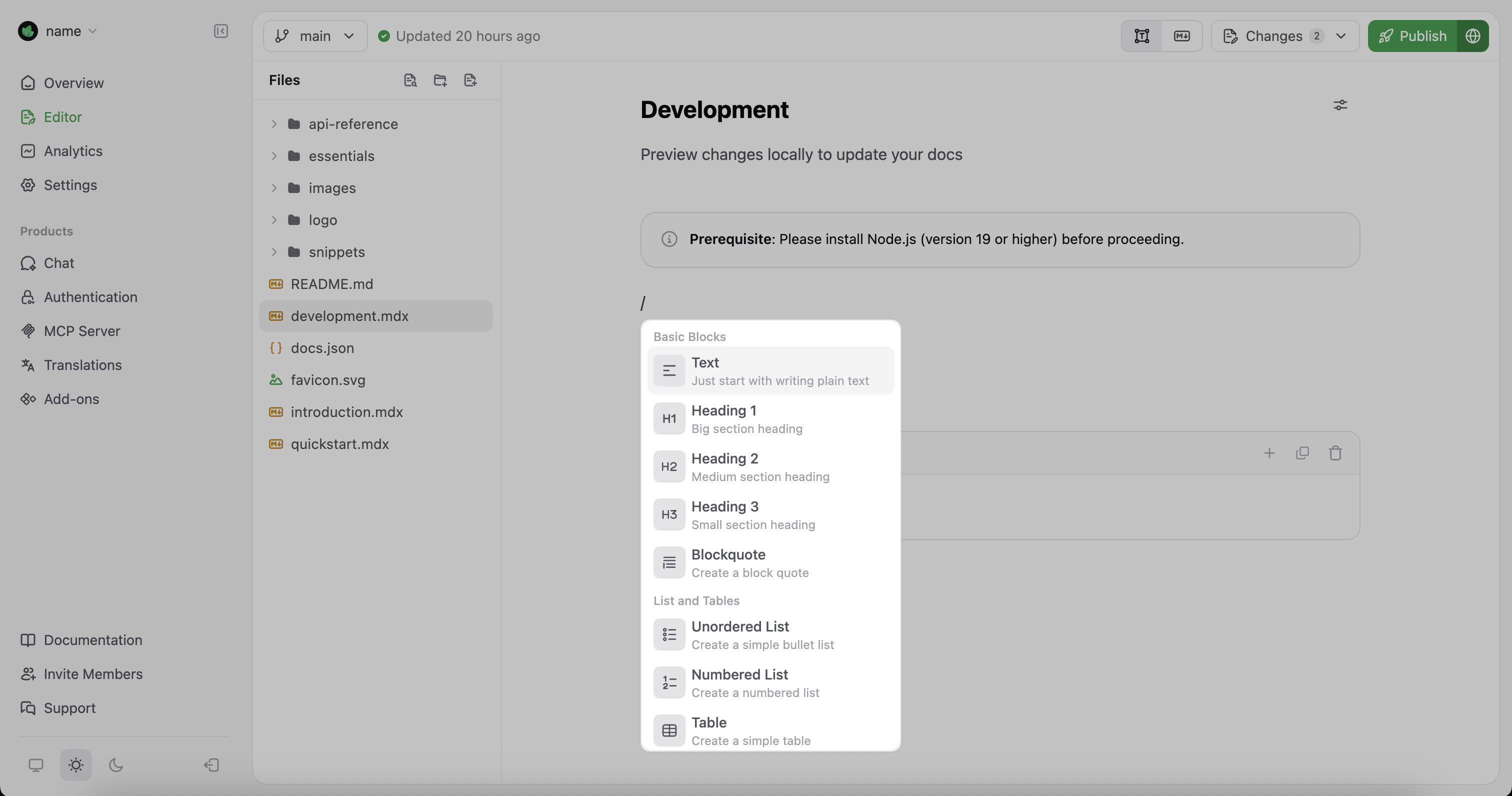
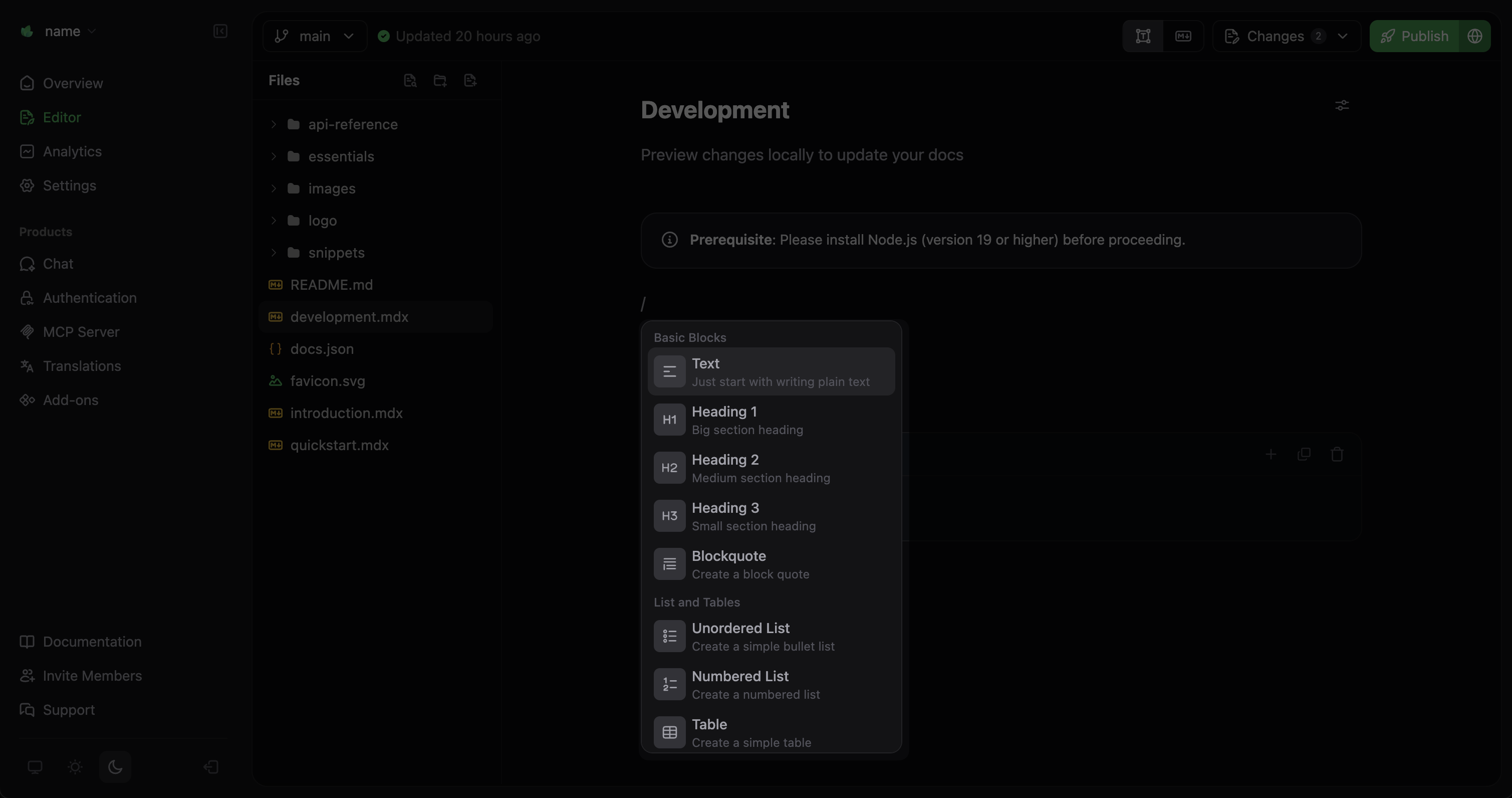
在可视化模式下，按 <kbd>/</kbd> 打开组件菜单。添加内容块、提示框、代码块等组件，定制你的文档。

<Frame>
  <img src="https://mintcdn.com/omer-914cc1c6/AiL60EGGBeap42Y0/images/editor/component-menu-light.png?fit=max&auto=format&n=AiL60EGGBeap42Y0&q=85&s=372eed2f50c617c7f3d7da5fd148324a" alt="Mintlify 网页编辑器中展开并高亮的组件菜单" className="block dark:hidden" width="3024" height="1592" data-path="images/editor/component-menu-light.png" />

  <img src="https://mintcdn.com/omer-914cc1c6/AiL60EGGBeap42Y0/images/editor/component-menu-dark.png?fit=max&auto=format&n=AiL60EGGBeap42Y0&q=85&s=9320c79260f6fb630441d0c0b0b448d1" alt="Mintlify 网页编辑器中展开并高亮的组件菜单" className="hidden dark:block" width="3018" height="1592" data-path="images/editor/component-menu-dark.png" />
</Frame>

在 Markdown 模式下，你可以直接编辑页面的 `MDX`。在以下情况下会很有帮助：

* 设置特定的组件属性
* 处理复杂的嵌套组件
* 从其他来源复制并粘贴 `MDX` 内容