> ## Documentation Index
> Fetch the complete documentation index at: https://omer-914cc1c6.mintlify.site/llms.txt
> Use this file to discover all available pages before exploring further.
# Managing content
> Create, edit, and organize your documentation pages
## Navigating your files
Use the sidebar file explorer to browse your documentation files. Click on any file to open it in the editor.
Press Command + P (Ctrl + P on Windows) to search for files by name.
## Creating new pages
Select the **Create a new file** icon in the file explorer sidebar.

 Filenames must end in `.mdx`. For example, `api-reference.mdx` or `getting-started.mdx`.
Press Enter to create the file. It will open automatically in the editor, ready for content to be added.
## Organizing your navigation
Add new pages to your site navigation by editing your `docs.json` file.
Find and open the `docs.json` file in your root directory using the file explorer.
Find the spot in the `docs.json` file where you want to add your new page.
Insert your page filename (without the `.mdx` extension) in the appropriate group's `pages` array.
### Example: Adding a themes page
```json title="Adding a themes page to the Profile group" highlight="18" theme={null}
{
"navigation": {
"groups": [
{
"group": "Getting started",
"pages": [
"index",
"quickstart",
"installation"
]
},
{
"group": "Profile",
"pages": [
"settings",
"account-types",
"dashboard",
"themes"
]
}
]
}
}
```
## Editing content
Make changes to your pages using visual mode or Markdown mode in the editor.
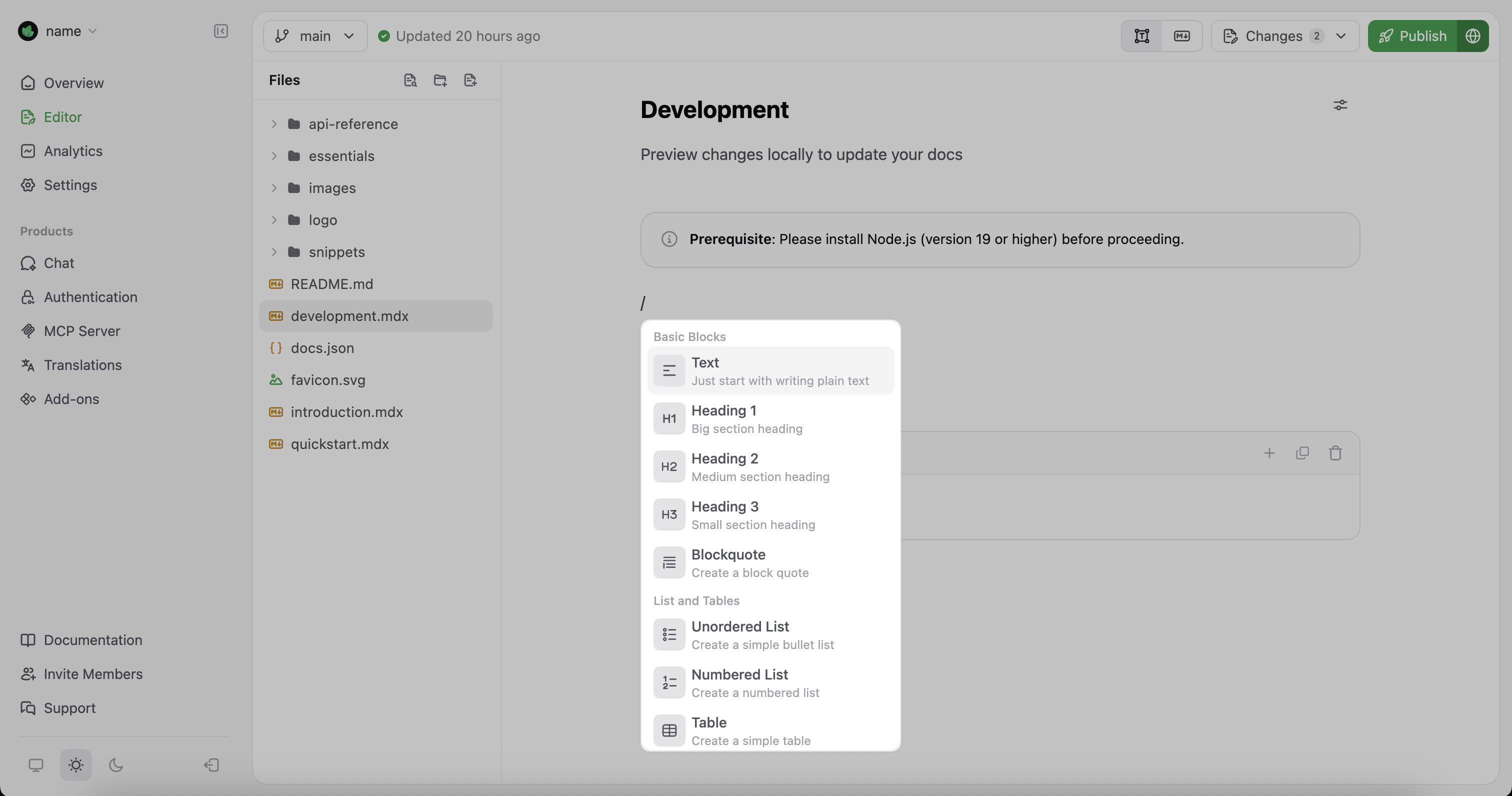
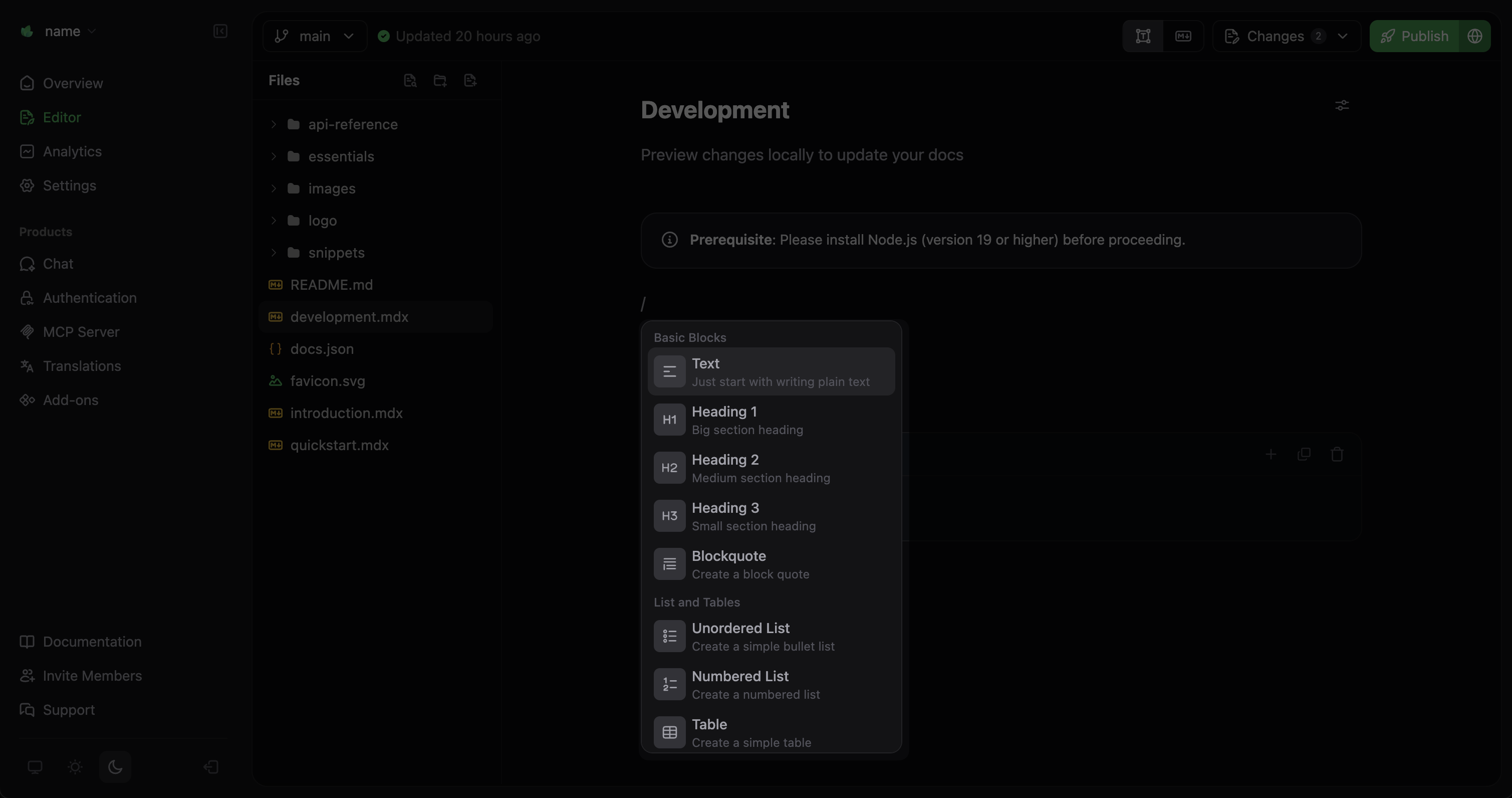
In visual mode, press / to open the component menu. Add content blocks, callouts, code blocks, and other components to customize your documentation.
Filenames must end in `.mdx`. For example, `api-reference.mdx` or `getting-started.mdx`.
Press Enter to create the file. It will open automatically in the editor, ready for content to be added.
## Organizing your navigation
Add new pages to your site navigation by editing your `docs.json` file.
Find and open the `docs.json` file in your root directory using the file explorer.
Find the spot in the `docs.json` file where you want to add your new page.
Insert your page filename (without the `.mdx` extension) in the appropriate group's `pages` array.
### Example: Adding a themes page
```json title="Adding a themes page to the Profile group" highlight="18" theme={null}
{
"navigation": {
"groups": [
{
"group": "Getting started",
"pages": [
"index",
"quickstart",
"installation"
]
},
{
"group": "Profile",
"pages": [
"settings",
"account-types",
"dashboard",
"themes"
]
}
]
}
}
```
## Editing content
Make changes to your pages using visual mode or Markdown mode in the editor.
In visual mode, press / to open the component menu. Add content blocks, callouts, code blocks, and other components to customize your documentation.
 In Markdown mode, you can directly edit the `MDX` of your pages. This can be helpful when you need to:
* Set specific component properties
* Work with complex nested components
* Copy and paste `MDX` content from other sources
In Markdown mode, you can directly edit the `MDX` of your pages. This can be helpful when you need to:
* Set specific component properties
* Work with complex nested components
* Copy and paste `MDX` content from other sources